Importing & Cropping Photos
What This Tutorial Covers
Image Fill
Apply photos as fills on shapes and frames.
Crop Mode
Click into the fill to crop and reposition.
Image Tweaks
Adjust exposure, contrast, and saturation in-app.
Noble Desktop's UX/UI Design Certificate teaches Figma in depth alongside the full UX process.
Explore this in-depth tutorial on how to import and crop photos in Figma, as well as add rounded corners to give your designs a polished look.
Exercise Preview

Importing a Photo As an Image Fill (Cropping a Photo)
In Figma, if you’re not on the homescreen (file browser), do the following:
- In the Desktop app: Click the
 Home tab (Mac users can also choose File > Open File Browser).
 - In the Web app: At the top left, click the Main menu button
 and choose Back to files.
- In the Desktop app: Click the
- To open a local file, click
 Import file (may be an icon near the top right).
 Navigate into Desktop > Class Files > Figma Class > Pulse and double–click on Home Page—Ready for Photos.fig to choose it.
Once the file has uploaded, click Done and double–click on the file to open it.
- Zoom to 100% by hitting Shift–0.
- Notice there are 3 dark gray rectangles. We want to put photos into these boxes. Make sure you can see the entire top dark gray box (behind New Autumn Attire), because this is where we’ll put the first photo.
- In the toolbar at the top left, click on the down arrow next to Rectangle tool
 and from the menu that appears choose Place image/video
  .
. - Navigate into Desktop > Class Files > Figma Class > Pulse > Pulse Photos and double–click on feature-jpeg.jpg to select it.
- Hover over the top dark gray box (behind New Autumn Attire) and click once to place the image into that box.
- Click again on the photo to select it.
- Grab any one of the corner resize handles and drag around to see how the image scales to always fill the box.
Undo the size by hitting Cmd–Z (Mac) or CTRL–Z (Windows).
This has created an image fill, which acts similar to a background image in a webpage that’s set to cover the area. It scales up or down to fill the area, and it’s center aligned (vertically and horizontally) so the edges may be cropped.
Let’s make the photo smaller to add some white space around it.
Hold Option (Mac) or ALT (Windows) and drag the left or right side in slightly until it snaps to the semi-transparent white box behind New Autumn Attire. By holding this keystroke it will pull in both the left and right sides at once!
- We added 15 pixels of space on the left/right. Let’s move it down using keystrokes. With the image selected, press Shift–Down Arrow to move it down 10 pixels.
- Press the Down Arrow 5 more times
- To verify that it’s now 15 pixels away from the navbar, keep the image selected.
- Hold Option (Mac) or ALT (Windows) and hover over black background of the navbar. The distance between the two elements should be displayed in the space between them. Cool!
Drag up the bottom edge so it snaps to the bottom of the semi-transparent white box behind New Autumn Attire.
Rounded Corners & Cropping Photos
Let’s round the corners of the photo.
- Hover over the image and notice there are dots inside each of the four corners (not the resize handles at the very corner).
As shown below, drag any of those dots towards the middle of the photo (to round all 4 corners).

In the Design panel, below H (height) is the
 Corner radius amount.
Let’s change it to a specific value. Set it to 15 and hit Return (Mac) or Enter (Windows) to apply it.
There are two more dark gray rectangles that we want to fill with photos (for Women and Men).
In the toolbar, click on the down arrow next to Rectangle tool
and from the menu that appears choose Place image/video .Navigate into Desktop > Class Files > Figma Class > Pulse > Pulse Photos. We’re going to select 2 images, so:
- Click once on man.jpg to select it.
- Hold Cmd (Mac) or CTRL (Windows) and click once on woman-side-facing.jpg so both files are selected.
- Click Open.
You should have 2 photos loaded into your cursor, with a previewing of one (it should be the women photo.
- Hover over the gray box for Women and click once to put the first photo there.
- Hover over the gray box for Men and click the place the other photo.
- Let’s size and position the woman photo better inside. Select the woman photo.
- In the middle of the toolbar, click Crop image
 .
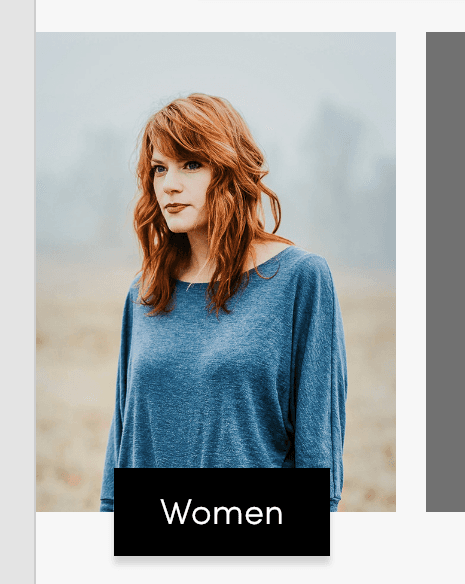
. Hold Shift and grab a corner of the partially-transparent image (NOT the blue corners) and resize the photo like the example below. It can be hard to see the edges of the partially-transparent photo, but watch your cursor for the resize cursor.
Drag on the image to move it and click off the image to see the final crop.
- Click in an empty area a few times to make sure nothing is selected.
- Let’s round the corners of this photo. Click once on the Women photo to select it.
- In the Design panel, below H (height) set Corner radius to 15.
Let’s remove the rounding from the two corners on the left side (while leaving the rounding on the two corners on the right side).
Hold Option (Mac) or ALT (Windows), grab the corner radius dot inside the top-left corner and drag it toward the corner until it’s no longer rounded.
- Repeat the process for the bottom-left corner. Hold Option (Mac) or ALT (Windows), grab the corner radius dot inside the bottom-left corner and drag it toward the corner until it’s no longer rounded.
Click in an empty part area to see the final result. Cool!
Updating Photos
Now that we see this photo in our layout, we don’t like how both women are looking to the left. Let’s swap out the bottom photo with a different photo.
- In the toolbar, click on the down arrow next to Rectangle tool and from the menu that appears choose Place image/video .
- Navigate into Desktop > Class Files > Figma Class > Pulse > Pulse Photos and double–click on woman-front-view.jpg to choose it.
- Click on the bottom photo (for Women) to replace it!
- If needed, adjust the size and position of the new photo (in the middle of the toolbar, click Crop image ).
- When done, click on an empty area to deselect.
Cropping Keystroke
Instead of having to click Crop image in the toolbar, with an image selected you can hold Cmd (Mac) or CTRL (Windows) while you drag the corners to crop it.
Download the Original Image (Full Resolution)
- Select an image.
- Near the top right of the window, click on the Inspect panel (to the right of Design).
- In the Code section, on the right click the Table button
 .
. - Click the File Name and a new browser window will open with the image.
Optional Bonus: More Practice
- Let’s size and position the men’s photo better. Click once on the men’s the photo to select it.
- In the middle of the toolbar, click Crop image
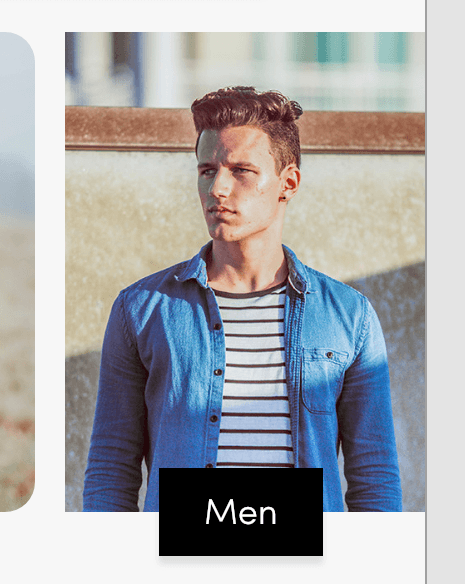
Resize the photo (grab the transparent photo edge, NOT the blue corners) and drag it into position so it looks like the example below:
- Click in an empty area to make sure nothing is selected.
- Let’s round the corners of this photo so it looks like a mirror of the Women photo next to it. Click once on the Men photo to select it.
In the Design panel, below H (height) is
Corner radius. To its right click the Independent corners button  to reveal 4 amounts (one for each corner).
Set the 4 corner radius amounts to 15 0 15 and hit Return (Mac) or Enter (Windows) to apply it.
NOTE: The amounts start at the top left corner and go clockwise. In order they are: top left, top right, bottom right, bottom left
Click on an empty area to deselect and see the final layout.