April 1, 2026Dan Perico/3 min read

The Rectangle Command

Master AutoCAD Rectangle Commands for Precise Technical Drawing

Tutorial Focus

This tutorial teaches you to create rectangular polylines using AutoCAD's Rectangle Command, emphasizing the difference between single objects and multiple line segments.

Topics Covered in This AutoCAD Tutorial:

Using the Rectangle Command

Learning Objectives

Rectangle Command Mastery

Learn to use the Rectangle tool from the Ribbon panel to create precise rectangular shapes with coordinate input.

Polyline Understanding

Understand the difference between single polyline objects and multiple separate line segments for better drawing efficiency.

Dynamic Input Control

Master Dynamic Input settings to control coordinate behavior and avoid unexpected rectangle placement results.

Exercise Preview

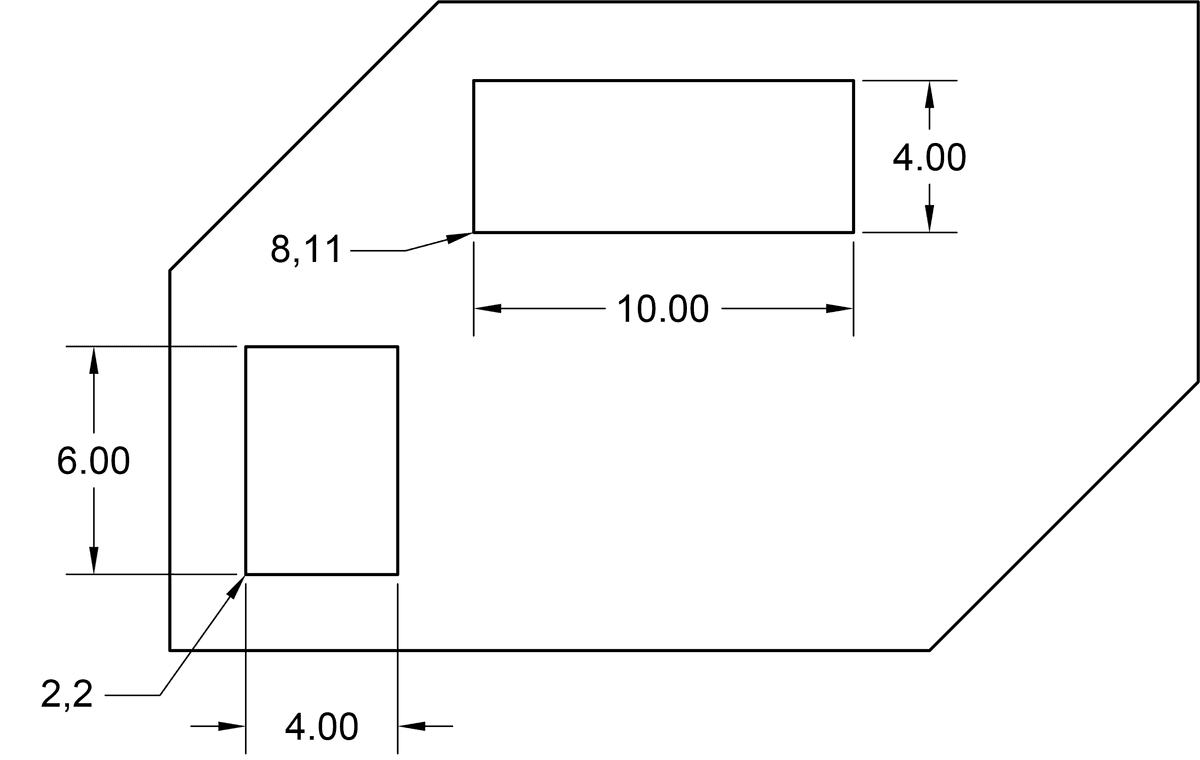
ex preview rectangle command

Exercise Overview

In this exercise, you'll master the Rectangle Command to create rectangular polylines—one of the most fundamental yet versatile tools in AutoCAD. Understanding polylines is crucial for efficient drafting: they're single, unified objects even when composed of multiple line segments. This distinction matters significantly in professional practice. When you draw a rectangle using the Line Command, each side becomes a separate object requiring individual selection and modification. The Rectangle Command, however, creates a single continuous polyline that behaves as one entity, streamlining your editing workflow and improving drawing performance in complex projects.

This approach becomes especially valuable when working with large architectural plans or mechanical drawings where object management and file efficiency are paramount.

Rectangle Command vs Line Command

FeatureRectangle CommandLine Command
Object TypeSingle polyline objectMultiple separate objects
Editing EfficiencySelect once to edit entire shapeMust select each line segment individually
Drawing SpeedTwo corner points onlyFour separate line segments
Recommended: Use Rectangle Command for faster creation and easier editing of rectangular shapes

Using the Rectangle Command

  1. To initiate rectangle creation, locate the Rectangle tool Rectangle in the top Ribbon panel and click it.

    The command line will confirm that the Rectangle Command is now active and awaiting your input.

  2. Like most drawing commands in AutoCAD, the Rectangle Command requires you to establish a starting reference point. You can accomplish this by clicking directly in the drawing area or by entering precise X,Y coordinates for maximum accuracy.

    For this exercise, type 2,2 to set your first corner point, then press Enter to confirm.

  3. With the first corner established, AutoCAD now requires the opposite corner coordinates to define your rectangle's dimensions and complete the geometry.

    Type 4,6 and press Enter. Notice how this second coordinate pair simultaneously defines both the rectangle's width (4 units) and height (6 units) while completing the command in one efficient step.

    Professional Tip: You can specify negative X,Y values to position the opposite corner to the left and/or below your starting point—a useful technique when working within constrained design spaces or when your reference point isn't the lower-left corner.

  4. Press Enter to repeat the Rectangle Command and create a second rectangle. This command repetition feature saves time during repetitive drafting tasks.

  5. For the second rectangle's first corner, type the coordinates 8,11 and press Enter.

  6. Complete the second rectangle by typing 10,4 and pressing Enter. This places the opposite corner and finalizes the geometry.

  7. Preserve your work by navigating to File > Save As and locating your Class Files > AutoCAD Class directory.

  8. Name your file rectangle line drawing.dwg and click Save to store your progress.

    Creating Your First Rectangle

    1

    Access Rectangle Tool

    Click the Rectangle tool in the top Ribbon panel to start the Rectangle Command.

    2

    Set First Corner Point

    Type coordinates 2,2 and press Enter to establish the starting corner point.

    3

    Define Opposite Corner

    Type coordinates 4,6 and press Enter to complete the rectangle with 4 units width and 6 units height.

    4

    Save Your Work

    Go to File > Save As, navigate to Class Files > AutoCAD Class, name it 'rectangle line drawing.dwg' and click Save.

    Coordinate Flexibility

    You can enter negative X, Y values to specify the opposite corner to the left and/or below the starting corner point, giving you full directional control.

Dynamic Input

Understanding AutoCAD's coordinate systems is essential for professional drafting accuracy. When you disable the Dynamic Input button dynamic input icon in the Status Bar, AutoCAD reverts to Absolute Coordinate format, fundamentally changing how the Rectangle Command interprets your input. With Dynamic Input disabled, coordinate entries specify absolute positions on the drawing's XY grid rather than relative dimensions. For example, entering 5,3 would place the rectangle's opposite corner at the absolute coordinates 5X, 3Y instead of creating a rectangle with a 5-unit width and 3-unit height. This behavior can produce unexpected results that may compromise your drawing accuracy. If your rectangles aren't appearing as intended, verify that Dynamic Input is enabled—it's become the standard workflow for most drafting professionals since AutoCAD 2006 and remains the default in current versions through 2026.

Critical Setting Alert

If Dynamic Input is disabled in the Status Bar, AutoCAD reverts to Absolute Coordinate format, which fundamentally changes how the Rectangle Command interprets your coordinate inputs.

Dynamic Input On vs Off

FeatureDynamic Input EnabledDynamic Input Disabled
Coordinate InterpretationWidth and height dimensionsAbsolute XY grid positions
Input 5,3 ResultRectangle 5 wide by 3 highCorner placed at grid position 5X, 3Y
PredictabilityRelative to first cornerAbsolute grid reference
Recommended: Keep Dynamic Input enabled for intuitive width and height input behavior

Troubleshooting Rectangle Command Issues

0/3

Key Takeaways

1The Rectangle Command creates single polyline objects, unlike the Line Command which creates multiple separate line segments for each side
2Access the Rectangle tool from the top Ribbon panel and establish rectangles using two corner point coordinates
3Dynamic Input setting in the Status Bar controls whether coordinates are interpreted as width/height dimensions or absolute grid positions
4You can use negative X, Y values to position the opposite corner to the left or below the starting corner point
5When Dynamic Input is enabled, entering coordinates like 4,6 creates a rectangle 4 units wide and 6 units high
6With Dynamic Input disabled, the same coordinates 4,6 would place the opposite corner at absolute grid position 4X, 6Y
7Always save your work using File > Save As with descriptive filenames in organized folder structures
8If getting unexpected results from Rectangle Command, first check whether Dynamic Input is properly enabled

RELATED ARTICLES