Polyline Edit & Spline Commands
What This Tutorial Covers
PEDIT
Join, fit, and modify polylines after creation.
SPLINE
Smooth curves through a series of control points.
Convert Between
Switch polylines and splines as needs change.
Noble Desktop's AutoCAD Certification teaches 2D drafting, 3D modeling, and the production drawing workflow architects and engineers rely on every day.
Dive into the details of AutoCAD utilities such as the Polyline Edit Tool and Spline Tool, covered extensively in this tutorial to help you create complex designs with ease.
Exercise Preview

Exercise Overview
In this exercise, you will learn to use the Polyline Edit (PEDIT) to join unconnected line segments into one Polyline, and also to use the tool to curve polylines. You can start Polyline Edit by typing PE Enter or clicking on the Polyline Edit button  in the expanded Modify panel or on the Modify II toolbar.
Polyline Edit & Spline
Open the file Polyline Edit-Ranch.dwg. This is an outer perimeter of a floor plan drawn with the Line tool with overlapping polygons so that the Trim and Polyline Edit tools can be used to combine them into an outline of a floor plan.
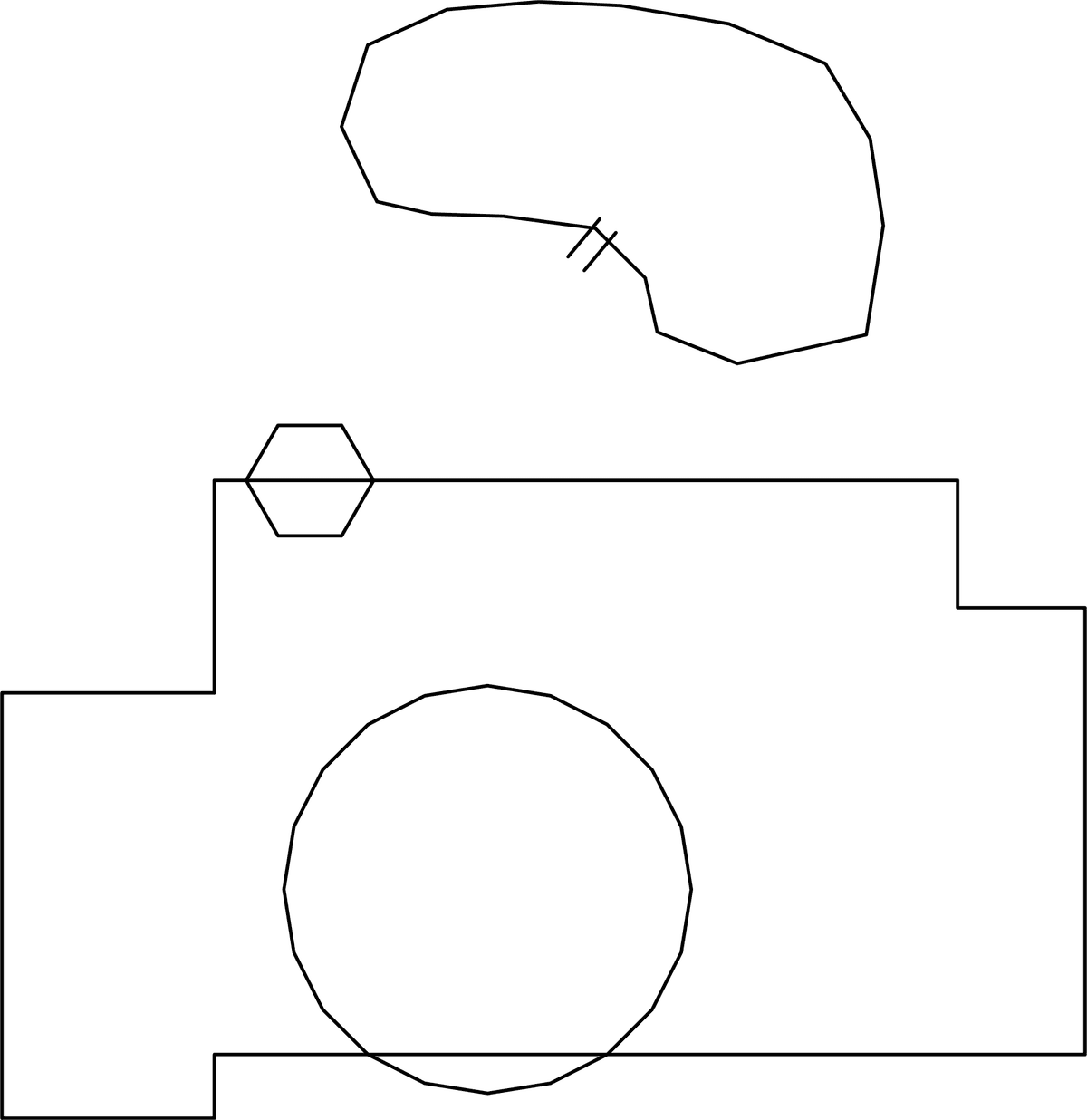
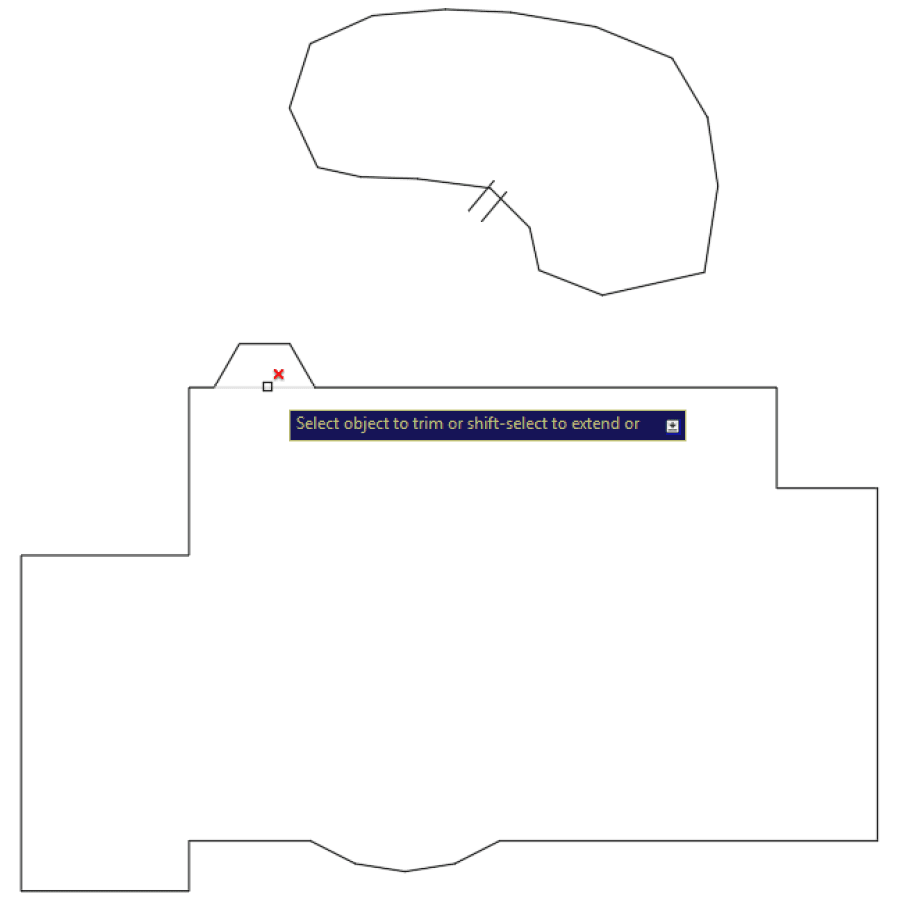
Use the Trim tool to delete the sections of the polygons and the perimeter so that all that remains is the outline of the floor plan as shown below. You can use the eRase option of the Trim command to remove any leftover line segments, or delete them after the Trim command is completed.
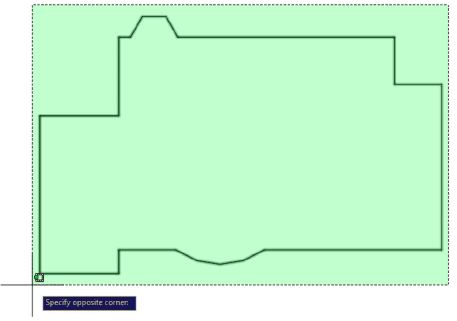
Now you will use the Polyline Edit command to combine the line segments of the floor plan perimeter into one continuous polyline so it can be offset as one object to create the inner wall. Type PE Enter to start the Polyline Edit command. By default, you will only be able to select one object, but in the Command line, you will see a Multiple option. Press M Enter to select the option. Select all of the segments in the outline and press Enter. You will be prompted to Convert Lines, Arcs, and Splines to polylines. Press Enter to accept the default answer of Yes to convert the segments. From the Polyline Edit options, select Join from the Dynamic Input or press J Enter. You will now be prompted to enter a Fuzz Distance. If you enter a Fuzz Distance, the Polyline Edit tool will fill any gaps if lines don’t connect as long as the gaps are within the Fuzz Distance you enter. Since precision is very important in drafting, if there are gaps it’s probably because you made a mistake, so your Fuzz Distance should almost always be zero, and mistakes should be corrected before the lines are joined. Press Enter to accept the default Fuzz Distance of Zero. The lines are now joined, but the command will continue. The Polyline Edit tool has many uses, so the command will stay active until you press ENTER or Esc to end it. Press Enter to end the command.
Note that if you don’t choose the Multiple option at the beginning you will be prompted to select all the necessary segments after choosing the Join option. In this case you will not be prompted to enter a Fuzz Distance.
Now that the perimeter of the floor plan is one fluid polyline, you will be able to offset it as one object to make the outer wall. You will do this in the next exercise.
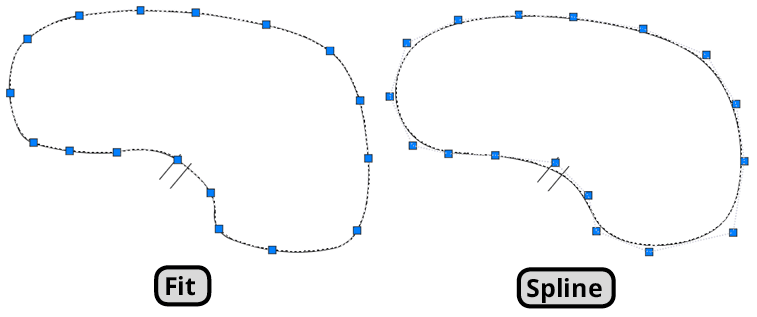
You can also use the Polyline Edit tool to curve polylines. The kidney pool behind the house was drawn with the Polyline tool. Because it’s already a polyline, you can double-click on it to start the Polyline Edit command. Double-click on the pool to start the Polyline Edit command. There are three options for curving in the Polyline Edit command that will appear in the Dynamic Prompt and Command Line, Fit, Spline, and Decurve. Fit will curve the polyline so that the path will intersect each vertex, Spline will use the vertices as guides to curve the pate, resulting in a smoother curve, and Decurve will make the segments straight again. You can use Polyline Edit to change or remove the curve at any time. Try both Fit and Spline. Exit the command after choosing each option and select the curve so you can see the relationship between the curve and the vertices for both Fit and Spline. Select Spline as the final option and exit the Polyline Edit Command.
You can also draw curved paths with the Spline tool. Start the Spline tool by typing SPL Enter or clicking the Spline Button
 in the expanded Draw Panel or Toolbar. Draw a kidney-shaped hot tub attached to the pool as shown below. Use the Close option for the last segment of the spline so that the endpoint of the spline will be smoother. Click to select the spline. You will see a down arrow List icon. Click the icon and it will show two options, Fit and Control Vertices. Neither will change the spline, but the will change how the control grips are configured. With the Control Vertices option, the grips will behave as they would using the Spline option with the Polyline Edit tool. Experiment with the different options and alter the hot tub in whatever way that appeals to you. Make sure that the shape intersects both straight line segments as shown, so you can use the Trim tool to connect the hot tub with the pool.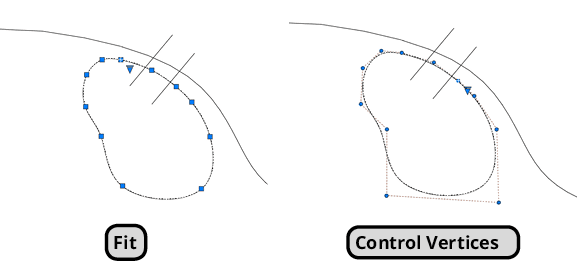
Use the Trim tool to connect the hot tub with the pool as shown below.
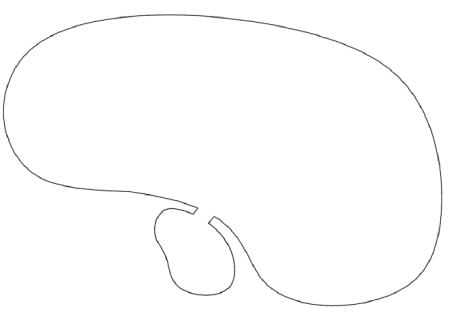
It is common to start a floor plan by creating the outer perimeter with whatever drawing tools necessary and then using Polyline Edit to convert it to a Polyline so that it can be offset as one object, unless you can make the outline with the Polyline tool so it will not need to be converted. You will further expand upon this floor plan using Offset, Line, Trim, and Extend in the next exercise.