April 1, 2026Dan Perico/7 min read

Offset & Explode Commands

Master AutoCAD Offset and Explode Commands Efficiently

Essential AutoCAD Commands Overview

Offset Command (O)

Creates parallel copies of lines at specific distances from originals. Essential for wall construction in floor plans and architectural drawings.

Explode Command (X)

Breaks down polylines, blocks, arrays, and grouped objects into individual components for more precise editing and modification.

Topics Covered in This AutoCAD Tutorial:

Offset Command, Explode Command

Exercise Preview

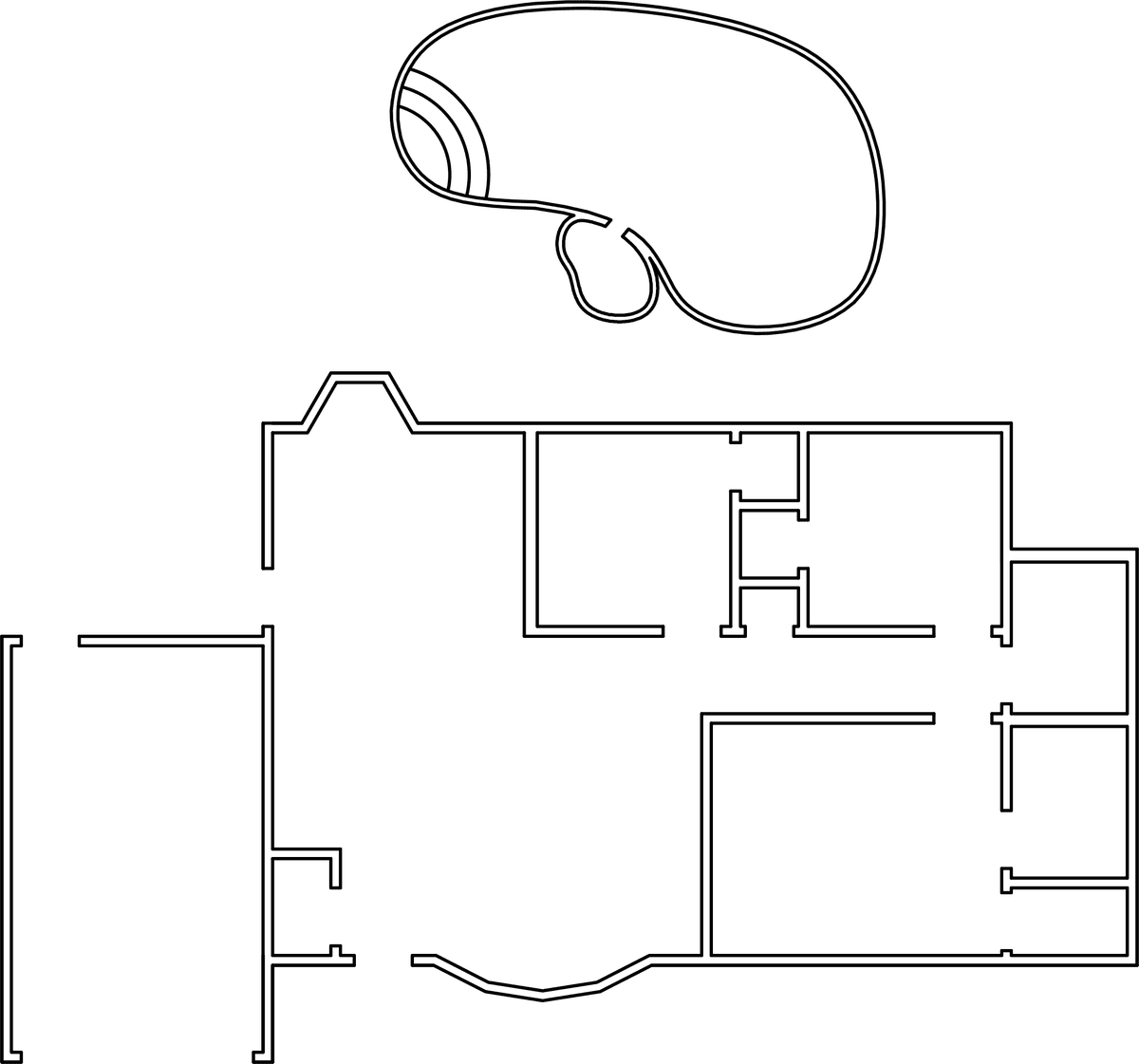
ex preview offset ranch

Exercise Overview

In this exercise, you'll master the powerful Offset Command—one of AutoCAD's most essential tools for creating precise parallel geometry. You'll use it to efficiently generate wall systems for a complete floor plan by creating copies of lines at exact distances from your original layout lines. The Offset Command dramatically speeds up drafting workflows, eliminating the need for manual measurement and construction of parallel elements. You can access Offset by typing O Enter or clicking the Offset button in the Modify panel. This exercise will also introduce you to the Explode Command, which breaks down complex polylines into individual line segments for more precise editing control.

Common Offset Distances in This Tutorial

6"
Standard wall thickness
10'
Bedroom spacing
4'
Closet width
35'
Individual closet size
Pro Tip

You can easily change the Offset Distance by pressing Enter or Spacebar twice to stop and restart the Offset command, prompting you to enter a new distance.

Offset (O) & Explode (X)

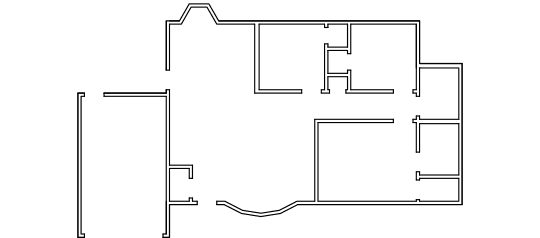
  1. Open the file Offset-Ranch.dwg. This enhanced version of the floor plan outline from the previous exercise includes strategic construction lines that will allow you to complete the entire wall system using the Offset Command. Notice how the drawing is organized with clean polylines that represent the basic room layout—this methodical approach to initial construction is what enables efficient offsetting.

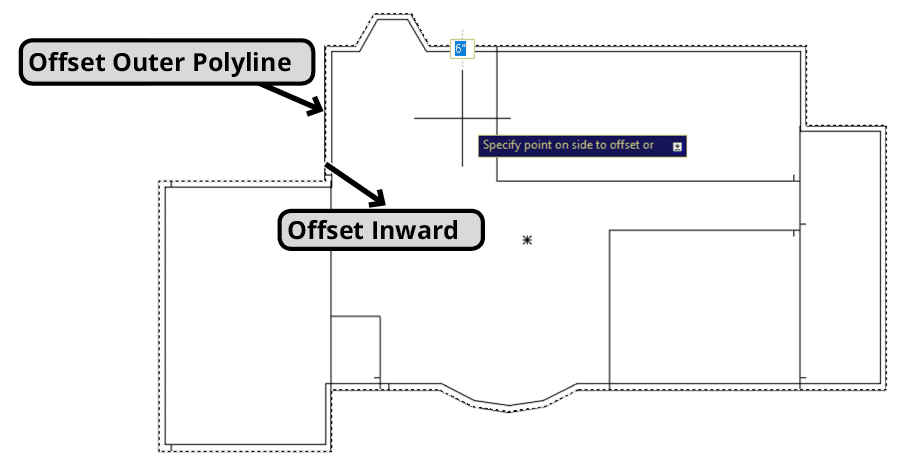
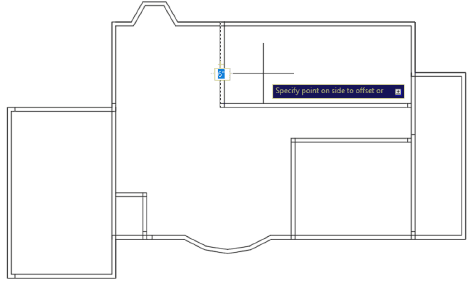
  2. Press O Enter to launch the Offset Command. AutoCAD will immediately prompt you to specify an Offset Distance—this is a required parameter that cannot be bypassed. This workflow design allows you to quickly change offset distances by pressing Enter or Spacebar twice to exit and restart the command with a new distance value. Enter 6" for the Offset Distance to create standard residential wall thickness. When prompted to select objects to offset, click on the outer polyline edge of the floor plan. AutoCAD will then ask you to Specify point on side to offset—click anywhere inside the polyline to create the interior wall face. Keep the Offset command active for the next operation to maintain workflow efficiency.

    offset outer inward polylines

  3. Now you'll offset the interior room boundaries to create their wall systems. For each room outline, when AutoCAD asks you to Specify point on side to offset, click on the inside of each room as illustrated below. Don't be concerned about overlapping lines at intersections—these will be cleaned up later using the Trim Command. This approach of creating all offsets first, then cleaning up intersections, is standard practice in professional CAD workflows as it's more efficient than trying to create perfect intersections during the initial offset operations.

    offest inner rooms

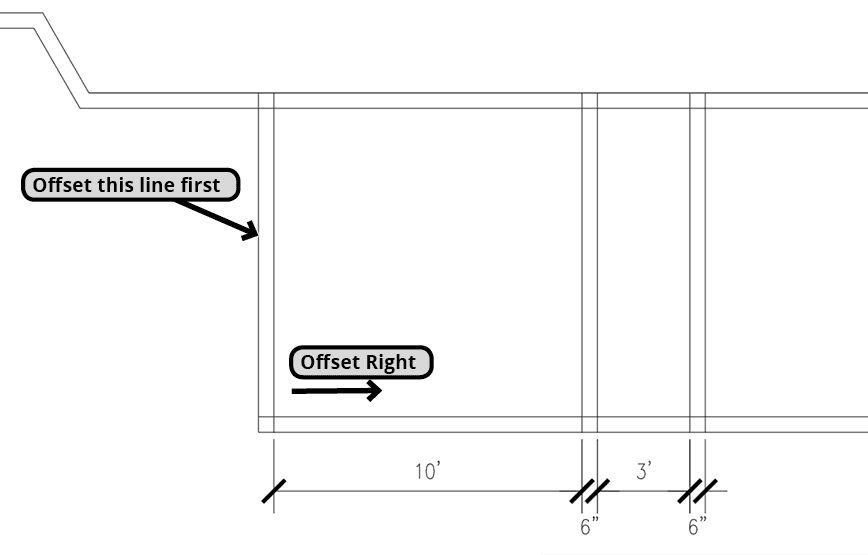
  4. Press Enter twice to end and restart the Offset command, then enter a new distance of 10' to create the bedroom width. Click on the inner left edge of the enclosed area in the upper right corner of the floor plan as shown in the diagram below. Click to the right of the line to Specify point on side to offset to establish the bedroom boundary. Double-tap the Enter key or Spacebar to restart the Offset Command and change the distance back to 6" for the wall thickness. Click to the right to offset the next line and complete the wall structure. Double-tap Enter again and enter 4' for the closet depth, then click to the right to create another line 4 feet away. Finally, double-tap Enter once more to change the offset distance back to 6", and click to the right again to finish the wall system. Press Enter or Esc to end the Offset command. This sequence demonstrates how professional drafters use multiple offset distances in quick succession to build complex wall assemblies.

    offset room lines 2

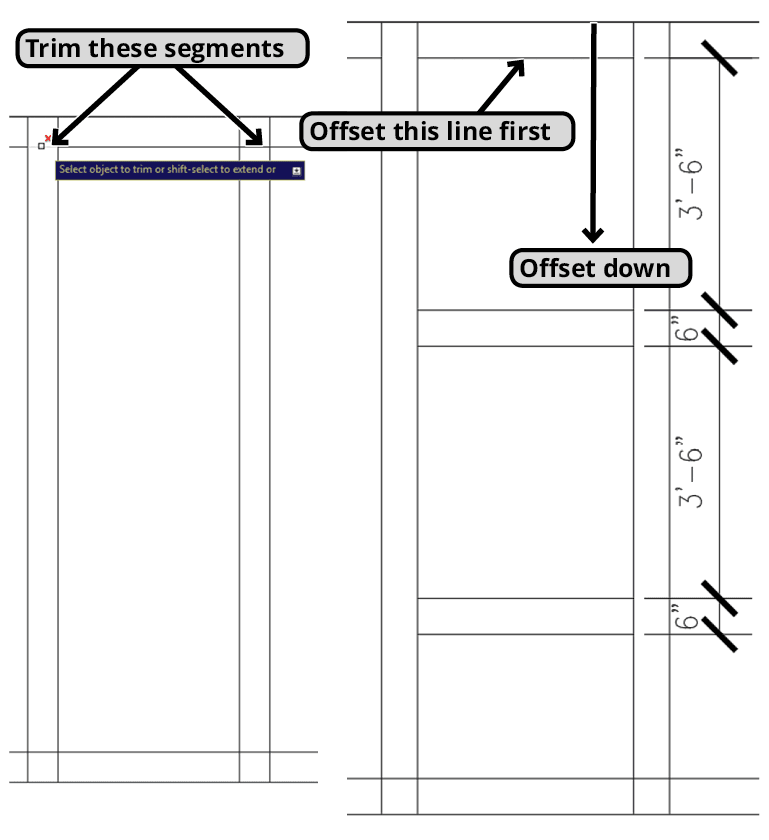
  5. The 3' space between the walls you just created will house the closets. Use the Trim tool to remove the wall segments on either side of the inner top edge of the closet space, isolating the line segment so it can be offset independently. This isolation technique is crucial when working with connected geometry—you need clean, individual line segments for precise offsetting. Select the upper inner edge of the closet space as the object to offset and offset it downward to create two 3'6" closets with 6" walls as shown below. Remember to double-tap the Enter key to restart the Offset Command whenever you need to change distances. Press Enter or Esc to end the Offset Command when complete.

    offset room lines 3

  6. Next, you'll combine Trim and Explode commands to prepare complex geometry for offsetting. The Explode command is essential for breaking down polylines, blocks, arrays, and other grouped objects into their individual components. This is particularly important in architectural drafting where you often need to modify individual segments of what appears to be a single element. Some complex objects contain nested groups and may require multiple explode operations to reach the individual line segments. The command alias for Explode is X (note: not EX, which activates the Extend command), or you can click the Explode button explode icon in the Modify panel.

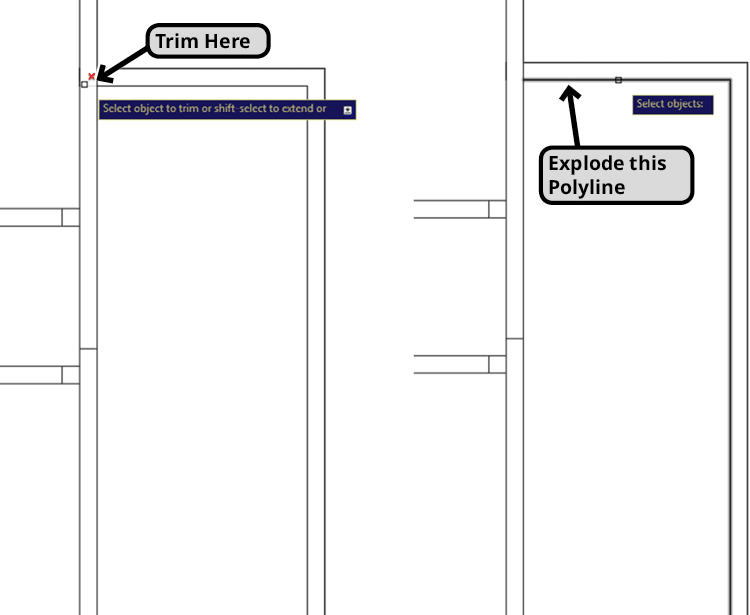
    Zoom in on the long rectangular area on the right side of the plan, which will be divided into the bathroom, master bathroom, and closet areas. Use Trim on the inner upper edge to remove the portion that intersects with the existing wall as shown below.

    When you hover your cursor over the upper inner edge, you'll notice it highlights along with the right edge—this indicates they're part of the same polyline object. To offset just the upper edge, you need to explode this polyline first. Type X Enter to start the Explode Command. Select the inner edge and press Enter to break the polyline into individual line segments, enabling you to offset the upper edge independently in the next step.

    offset room lines 4

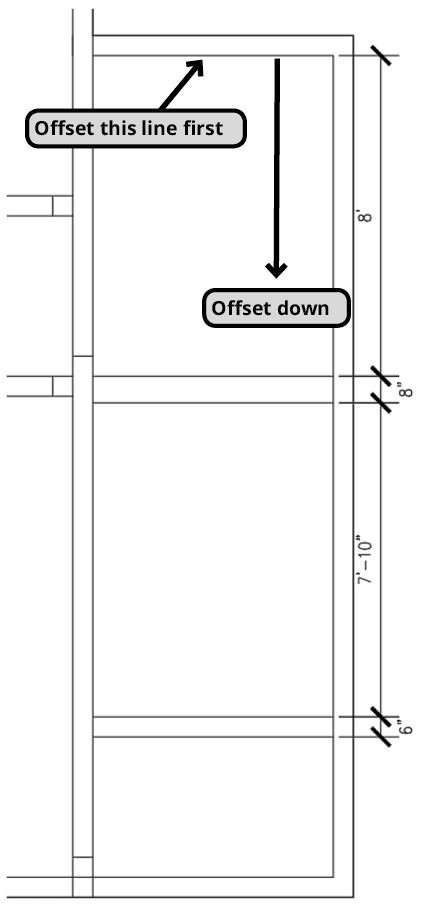
  7. With the polyline now exploded into individual segments, you can offset the upper inner edge as a single, independent object. Offset this line to create the wall systems for the bathroom areas using the same systematic approach you used for the bedrooms and closets. Follow the measurements shown in the diagram below, changing offset distances as needed by restarting the command. This methodical approach ensures consistent wall thicknesses and room dimensions throughout your floor plan. Keep the Offset Command active for the next step to maintain your workflow momentum.

    offset room lines 5

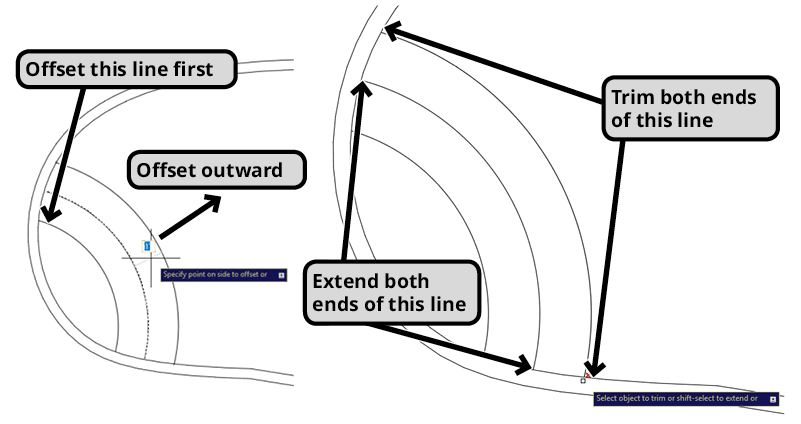
  8. Now you'll work on the pool area, which requires different offset techniques for curved elements. Offset the pool outline 4" to the outside to create the pool coping. Change the Offset Distance to 1' and offset the arc at the left end on the outside of the pool to create three progressive steps as shown below. Note that the steps will not automatically intersect properly with the curved pool outline—this is typical when offsetting curved geometry. End the Offset Command and use Trim and Extend commands to precisely align the step edges with the pool outline. This combination of offsetting followed by trimming and extending is standard practice for creating clean intersections between straight and curved elements.

    offset room lines 6

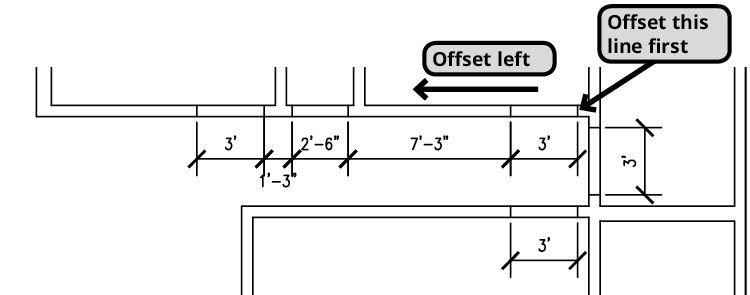
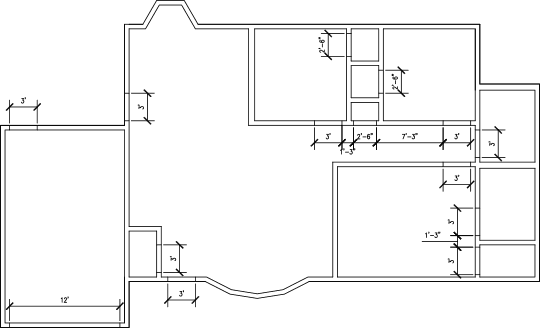
  9. You'll notice small line segments at various points along the walls—these represent one side of each doorway opening. Each line serves as a reference that you can offset to create the opposite side of the doorway, establishing the door width. This approach allows you to quickly lay out all door openings before using Trim to remove the wall segments between them. For multiple doorways along the same wall, you can efficiently change offset distances by double-tapping the Enter key to restart the command with new measurements. Refer to the dimensioned floor plan below for the specific edges to offset and their corresponding distances. This systematic approach to door layout is used in professional architectural workflows to ensure consistent door widths and proper spacing.

    offset room lines 7

    Professional Tip: Use Offset to establish the edges of all doorway openings using the distances specified below. This creates a complete layout framework before any trimming operations, ensuring consistent door widths and proper room relationships.

    offset distances

  10. If time permits, complete the floor plan by using the Trim Command to create clean openings for all doorways as shown below. This final step transforms your offset construction lines into a properly detailed architectural floor plan. The trimming process removes the wall segments between your offset door jamb lines, creating realistic door openings that accurately represent the final construction.

    offset trim doorway openings

  11. Save and close the file. You've now experienced a professional workflow that combines the Offset and Explode commands to efficiently create a complete architectural floor plan from basic layout geometry.

Basic Offset Command Workflow

1

Start Offset Command

Press O + Enter or click the Offset button in the Modify panel. You must specify a distance before proceeding.

2

Enter Distance

Input your desired offset distance (e.g., 6 inches for wall thickness).

3

Select Object

Click on the line or polyline you want to offset.

4

Specify Direction

Click on the side where you want the offset copy to appear.

Floor Plan Wall Creation Checklist

0/5
Important Note

Don't worry about overlapping lines during the offset process. You will correct them later with the Trim Command.
Offset vs Explode Command Usage

FeatureOffset CommandExplode Command
Primary FunctionCreates parallel copiesBreaks grouped objects apart
Command AliasOX (not EX)
When to UseCreating walls, boundariesIsolating line segments
Requires DistanceYes, mandatoryNo
Recommended: Use Offset for creating parallel elements, Explode when you need to edit individual segments of grouped objects.

Offset Distances Used in Exercise

Wall Thickness
6
Room Spacing
120
Closet Width
48
Individual Closet
42
Pool Border
4
Pool Steps
12
Explode Command Details

Some grouped objects are made up of smaller groups and polylines, so you may need to use Explode more than once on the same objects to fully break them down.

Bathroom and Closet Creation Process

Step 1

Trim Upper Edge

Delete intersecting wall portions using Trim command

Step 2

Explode Polyline

Use X + Enter to break connected edges into individual segments

Step 3

Offset Upper Edge

Create bathroom walls using appropriate measurements

Step 4

Create Pool Features

Offset pool 4 inches outside, add 1 foot steps with arc

Doorway Creation Tip

Each small line dividing walls represents one side of a doorway. Offset these lines to create the other side, then use Trim to create openings.

Key Takeaways

1The Offset command requires specifying a distance before you can select objects, enabling easy distance changes by restarting the command
2Standard wall thickness in architectural drawings is typically 6 inches, while room spacing may require larger offsets like 10 feet
3The Explode command (alias X, not EX) breaks polylines and grouped objects into individual segments for precise editing
4Multiple offset operations with different distances can create complex wall systems, including closet spaces and room divisions
5Overlapping lines created during offsetting are normal and should be cleaned up later using the Trim command
6Connected polylines may need to be exploded before individual segments can be offset independently
7Pool features and curved elements can be offset to create borders and stepped features like pool steps
8Doorway creation involves offsetting small wall segments and then trimming to create openings in the floor plan

RELATED ARTICLES