The AutoCAD Interface for Mac-Quick Reference Guide
AutoCAD Drafting Checklist
Wall lines on WALLS, dimensions on DIMS — never on layer 0.
Define them once in your template; reuse across projects.
Keeps file sizes manageable and exchange clean.
Project moves between machines without breaking references.
Noble Desktop's AutoCAD Certification teaches drafting, layouts, blocks, and dimensions.
Overview
Unlike most programs, the Autocad interface for the Apple Macintosh is significantly different from the PC interface. This reference guide is for Mac users to familiarize themselves with the Mac interface and the differences between the PC.
This book was originally written for the PC as it is the more widely used platform for Autocad. In areas where the two interfaces are similar, screenshots for the PC will be shown. If you have trouble finding anything on the screen because the book is more PC oriented, you can refer to this guide to help navigate the Mac interface.
There are also some tools and features that are not available on the Mac version, as well as a few common glitches that will be covered here.
You can run the PC version of Autocad on a Mac if it is also running the Windows operating system. If you have access to a Mac with Windows installed, it is recommended that try both the Mac and PC trial versions before making a final decision on which operating system you should install Autocad.
Welcome Screen
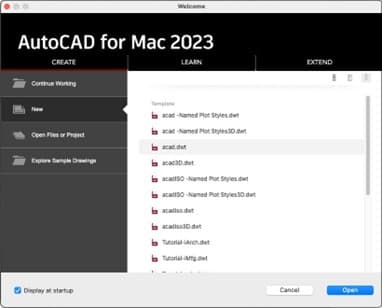
When you run Autocad on a Mac, a welcome screen appears. If you decide to create a new drawing, you must choose a template file to base it on, and the last template you used will be highlighted by default. In Autocad, all new files must be based on a template. The acad.dwt is the default template for blank drawings, which is set to decimal Imperial units and only has the default layer (0) and no formatted layouts (you’ll probably develop your own). If you un-check “Display at Startup”, Autocad will start with an open automatically generated drawing based on the acad.dwt template file.
Keyboard and Mouse
The common keyboard differences between Mac and PC are mostly the same in Autocad.
Enter on the PC is Return on the Mac.
Cntrl on the PC is Cmd on the Mac.
ALT on the PC is Option on the Mac.
However, the keyboard shortcut to bring up the Properties Palette is Control (cntrl)1 in both systems, NOT cmd 1.
If your mouse is set for one-button clicking, you can use Control-Click in place of Right-Click, but it’s recommended to set your mouse for two-button left and right clicking on your Mac operating system.
The mouse and the mouse wheel is used heavily in Autocad, including the ability to click down on the wheel to use it as a button. Although you can use Autocad with a trackpad, It is highly recommended that you work with a mouse. Because of it’s button-click functionality, It’s also recommended that you use a mouse with a physical mouse wheel as opposed to a sensor for scrolling.
Toolbar, Toolset Tabs, Palette Tabs, and Screen Layout
Most of the tools, panels and options that can be fount in the Ribbon Tabs and floating palettes on the PC can be found in the Toolbar, Toolset Tabs, and Palette Tabs
- The Toolbar is the horizontal strip of buttons at the top of the screen. Some of the more commonly used tools and commands are there.
- The Toolset Tabs are on the left. The panels in the tabs are equivalent to the tool panels in the Ribbon Tabs on the PC. The panels are very similar to those on the PC, but there are fewer panels on the Mac so some of the tools from the missing panels have been incorporated into other panels. For example, the Centerline Tool is in the Centerlines Panel of the Annotate Tab of the Ribbon on the PC, but it’s on the Draw Panel on the Mac because there is no Centerlines Panel. There is a Drafting Tab and a Modeling Tab. The Modeling Tab is for 3D and will not be used in this class.
- The Palette Tabs are on the right. There are some tools in the Palettes, but they’re mostly for options and settings, like changing layers and displaying and setting Properties. The three tabs are: Layers and Properties, Reference Manager, and Blocks. The Reference Manager is for External References (XREF) and will not be used in this class. The Layer Palette has two Layer drop down menus. The top menu is Layer Control and is for setting the current layer, changing the layer of selected objects, and changing layer states. The bottom menu is the Layer List which is the equivalent of the Layer Properties Manager and is for creating, naming, and changing the properties of layers.
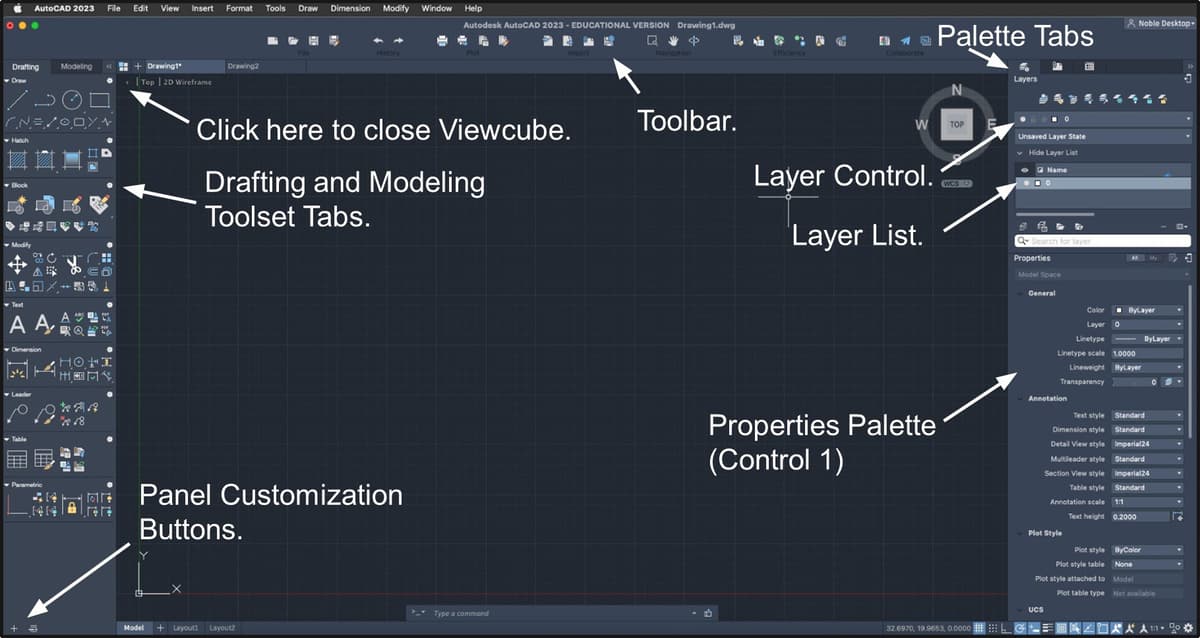
The Menu Bar, File Tabs, Layout Tabs, Command Line, and Status Bar are roughly the same as they are on the PC apart from some cosmetic differences. However, you will have to Right-Click on the Status Bar buttons to access the option menus like Object Snaps and Polar Tracking Angle that use menu arrow buttons on the PC.
Creation/Editor Panels.
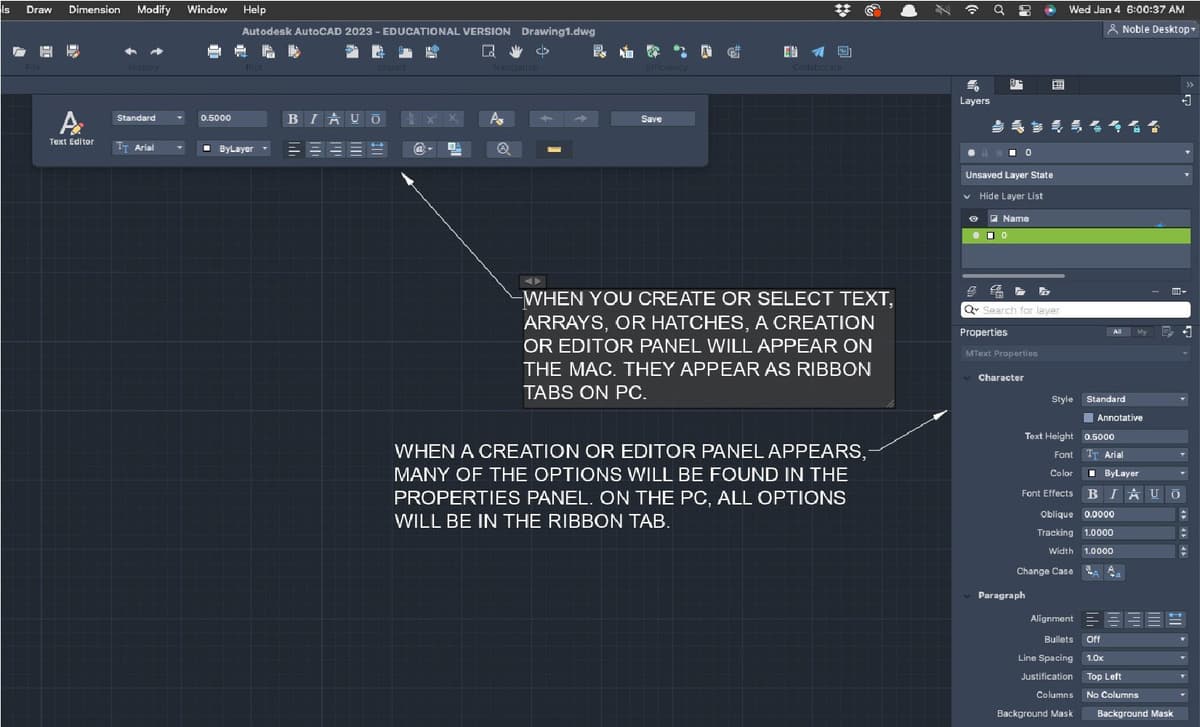
When you create or select certain types of objects, a panel for creation or editing will appear allowing you to define settings for those objects. Some of the options will be in the panel, while others will be in the Properties Palette. On the PC, all options are in the panels.
Features not available on the Mac.
(Relevant to this class. Not a complete list.)
- Tool Palettes- For inserting and customizing blocks and other elements like hatches, lights, and materials.
- Design Center
- Data Extraction
- Work Spaces
- Set to By Layer (setbylayer)
- Freeze in All Viewports except Current (layvpi)
Common glitches in Auotcad for Mac.
The Match Layer (laymch) command may not work properly for matching blocks. Selected object’s layers will be matched to the objects in the reference drawing for the block and not the layer the block was placed on. You can use Select Similar to select all the blocks on the incorrect layer.
In the Array tool, foot marks (‘) may not be recognized when entering distances for rows and columns for drawings in Architectural Imperial units, so you’ll need to enter your measurements in inches. For example, instead of 30’, you’d enter 360, for 20’, you’d enter 240, and so on.