April 1, 2026Dan Perico/4 min read

Advanced Modify Tools

Master AutoCAD's Advanced Modify Tools and Techniques

Essential AutoCAD Skills Covered

Trim Command Mastery

Learn to efficiently cut away portions of overlapping lines at intersection points. Essential for creating clean, professional drawings from complex geometry.

Select All Functionality

Discover how to streamline your workflow by using the Select All option to quickly trim any line section without pre-selecting cutting edges.

Complex Shape Creation

Transform simple overlapping circles, rectangles, and lines into sophisticated technical drawings like ventilation plates.

Topics Covered in This AutoCAD Tutorial:

Trim Command

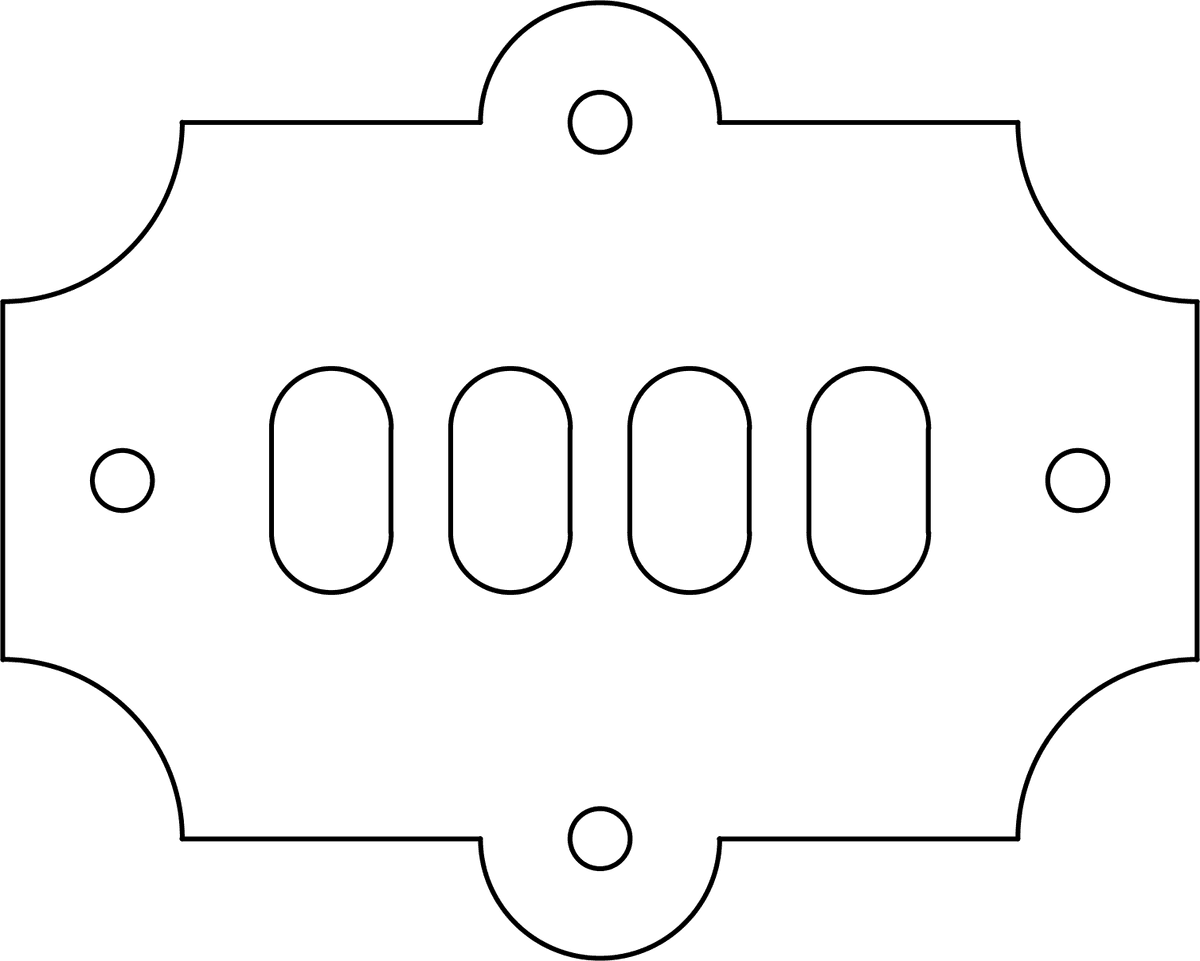
Exercise Preview

ex preview trim

Drawing File Required

This exercise uses the 'Trim-Ventilation Plate.dwg' file containing overlapping circles, rectangles, and lines that you'll transform into a technical ventilation plate drawing.

Exercise Overview

In this comprehensive exercise, you'll master the Trim command—one of AutoCAD's most essential editing tools for precision drafting. You'll learn to systematically remove unwanted line segments at intersection points, transforming basic overlapping shapes into sophisticated technical drawings. This fundamental skill is crucial for creating clean, professional drawings that meet industry standards for mechanical design and technical documentation.

Trim Command Methods Comparison

FeatureDefault MethodSelect All Method
Setup RequiredSelect cutting edges firstNo pre-selection needed
Workflow SpeedMulti-step processSingle-click trimming
Best ForPrecise controlQuick modifications
Learning CurveSteeperMore intuitive
Recommended: Select All method recommended for most trimming tasks due to its efficiency and ease of use.

The Trim Command

  1. Begin by opening the file Trim-Ventilation Plate.dwg. You'll notice this drawing contains strategically overlapping circles, rectangles, and lines—typical of preliminary design work where basic shapes serve as construction geometry. Your objective is to use the Trim command to eliminate excess linework, revealing the precise ventilation plate design beneath. This approach mirrors real-world drafting workflows where designers start with simple shapes and refine them into complex, manufacturable components.

  2. Understanding the Trim command's flexibility is key to efficient drafting. While the traditional workflow requires selecting cutting edges first, then choosing segments to remove, AutoCAD's Select All option streamlines this process significantly. This intelligent feature allows you to click any line segment and automatically trims it to the nearest intersection point—a time-saving approach that's become standard practice among experienced drafters. Access the Trim command by typing TR Enter or clicking the trim button icon in the Modify ribbon panel. When the command activates, notice the <select all> option in the Command Line—the angle brackets indicate this is the default option, accessible by simply pressing Enter.

  3. Now you'll put this knowledge into practice. Press TR Enter to initiate the Trim command and immediately press Enter again to activate the Select All option. This two-step process will become second nature as you develop your AutoCAD proficiency.

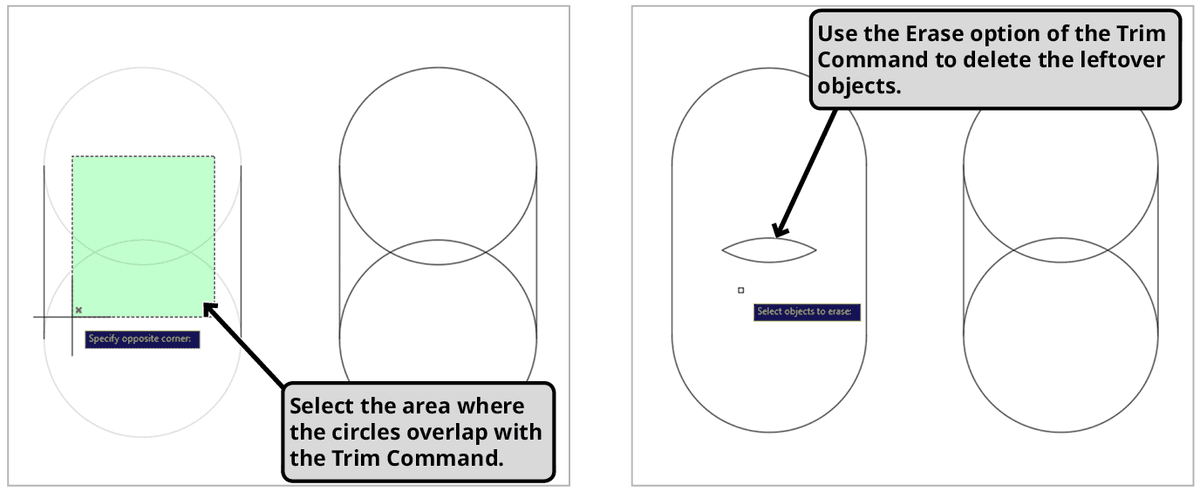
  4. Focus your attention on the leftmost vent slot, where overlapping circles create the foundation for a capsule-shaped opening. Use the zoom controls to get a clear view of your work area—precision is paramount in professional drafting. Create a Crossing Selection (indicated by the green selection box) over the overlapping circular segments, being careful to exclude the straight connecting lines. The intersecting portions will disappear instantly, but you'll likely notice small circular arc segments remaining where the circles previously overlapped. These remnants illustrate an important principle: the Trim command only removes object portions that intersect with other objects. Isolated segments require different handling. Fortunately, AutoCAD provides an elegant solution through the eRase option visible in the Command Line. Press R Enter to activate erase mode, select the orphaned segments, and press Enter to delete them. The Trim command will seamlessly resume, maintaining your workflow momentum.

    trim command select delete

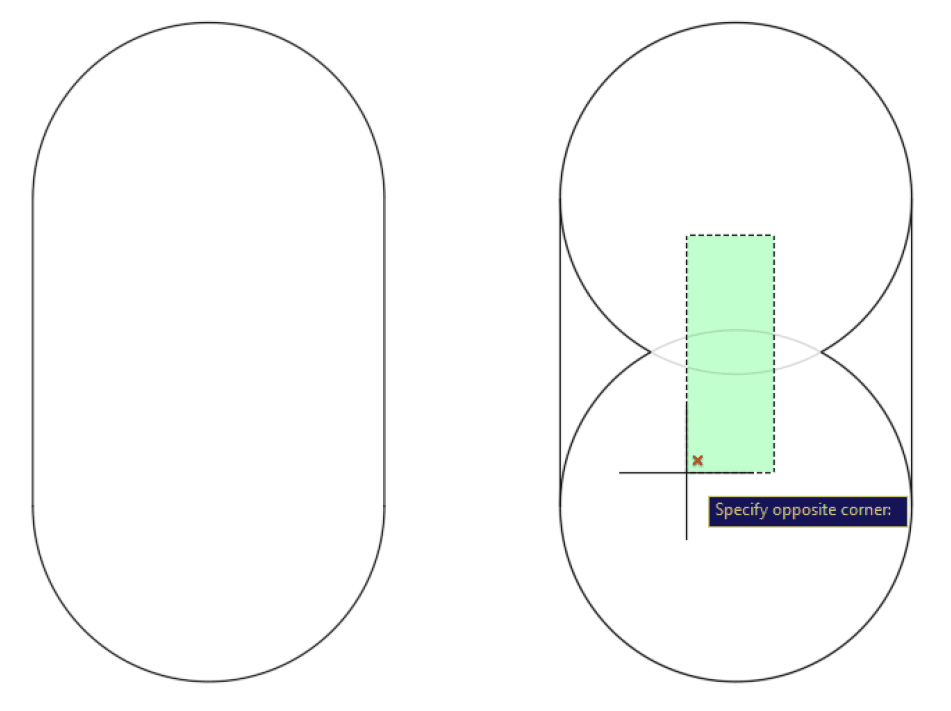
  5. Building on your initial success, continue with the adjacent vent opening while the Trim command remains active (if needed, restart with TR Enter and select the Select All option). This time, apply a more strategic approach by creating a narrow crossing selection that targets only the problematic overlapping edges you identified in the previous step. This proactive technique demonstrates professional foresight—by anticipating potential remnants and including them in your initial selection, you eliminate the need for secondary cleanup operations. Master this approach across all remaining vent openings, maintaining the Trim command throughout the process for maximum efficiency.

    trim specify opposite corner

  6. With the vent slots perfected, turn your attention to the ventilation plate's perimeter. Continue using the Trim command to methodically remove excess construction lines around the plate's edges. This final phase requires careful observation—you're transforming rough construction geometry into precise, manufacturable specifications. Work systematically around the entire perimeter, ensuring clean intersections and eliminating any superfluous linework that would confuse downstream manufacturing processes.

    ex preview trim

  7. Complete your work by pressing Enter or Escape to terminate the Trim command. Take a moment to review your finished drawing—it should match the preview image with clean, precise lines suitable for manufacturing documentation. Save and close the drawing, preserving your work. This exercise represents a fundamental skill that you'll apply countless times throughout your AutoCAD career, from simple sketches to complex assemblies.

Starting the Trim Command

1

Launch Command

Press TR + Enter, or click the Trim icon in the Modify ribbon panel or toolbar to start the command.

2

Choose Select All

When prompted, press Enter to choose the Select All option shown in brackets in the Command Line.

3

Begin Trimming

Click on any line section you want to remove - it will be deleted up to the intersection point with another object.

Professional Workflow Tip

Zoom in on complex areas like overlapping vent slots before making selections. Use crossing selection boxes for precise control over which elements to trim.

Trimming Vent Slots Process

1

Focus on Target Area

Zoom in on the leftmost vent slot with overlapping circles connected by lines forming a capsule shape.

2

Make Crossing Selection

Create a green crossing selection box over the overlapping circle areas, avoiding the straight connecting lines.

3

Handle Leftovers

Use the eRase option (press R + Enter) to delete any remaining circle segments that couldn't be trimmed automatically.

4

Refine Technique

On subsequent vents, make narrower crossing selections to target leftover pieces proactively.

Trim Command Limitation

The Trim command only deletes portions of objects that intersect with other objects. Isolated leftover pieces must be removed using the eRase option or deleted after completing the trim operation.

Exercise Completion Checklist

0/4

Select All vs Manual Cutting Edge Selection

Pros
Eliminates need to pre-select cutting edges
Faster workflow for complex drawings
Reduces selection errors and missed edges
More intuitive for beginners
Works efficiently with overlapping geometry
Cons
Less precise control in some situations
May require eRase option for cleanup
Leftover segments need additional attention
Advanced users may prefer manual control

Key Takeaways

1The Trim command is essential for creating clean technical drawings by removing unwanted portions of overlapping geometry at intersection points.
2The Select All option streamlines the trimming process by eliminating the need to pre-select cutting edges, allowing direct selection of line segments to remove.
3Access the Trim command quickly using the TR + Enter keyboard shortcut or by clicking the Modify ribbon panel icon.
4Use crossing selections (green selection boxes) for precise control when trimming complex overlapping areas like vent slots.
5The Trim command has limitations - it only removes intersecting portions of objects, requiring the eRase option for isolated leftover segments.
6Professional technique involves making narrower selections to proactively target potential leftover pieces during the initial trim operation.
7Complex drawings benefit from zooming in on specific areas before making trim selections to ensure accuracy and avoid unintended modifications.
8Always save your work after completing trim operations and properly exit the command using Enter or Escape to maintain drawing integrity.

RELATED ARTICLES