April 1, 2026Kalika Kharkar Sharma/12 min read

Making an Animated GIF: Adding Easing & Motion Blur

Master Advanced Animation Techniques in After Effects

Core Animation Concepts

Easing

Controls animation speed to create natural-looking motion that slows down gradually instead of stopping abruptly.

Motion Blur

Simulates how fast-moving objects appear blurred to the human eye in real life situations.

Keyframe Animation

Defines specific points in time where properties change, creating smooth transitions between states.

Topics Covered in This After Effects Tutorial:

Master advanced animation techniques by adding easing to create natural deceleration effects and implementing motion blur to simulate realistic rapid movement that mirrors real-world physics.

Exercise Preview

classes in a day

Exercise Overview

In this advanced exercise, you'll complete the sophisticated "IN A DAY" animated GIF by implementing professional-grade animation principles. We'll animate the remaining elements while focusing on two critical techniques that separate amateur work from professional motion graphics: easing for natural movement timing and motion blur for photorealistic motion simulation. These techniques are fundamental to creating animations that feel polished and engaging to viewers.

Animation Sequence Timeline

Frames 0-33

Class Names Drop In

Text elements animate from top with easing applied to slow down landing

Frames 43-50

Elements Slide Left

Class list moves left while icons fade in from left side

Frame 50

Title Panel Entry

Blue 'In a Day' panel slides in from right to complete composition

Re-Previewing the Final GIF

  1. Ensure you have yourname-classes-in-a-day.aep open in After Effects. If you've closed it, reopen it by navigating to File > Open Project then Desktop > Class Files > After Effects Class > Classes in a Day GIF. We strongly recommend completing the previous exercise (1B) before proceeding, as this builds directly on those foundational elements. If you haven't finished exercise 1B, follow the setup instructions below.

If You Did Not Do the Previous Exercise (1B)

  1. If a project is currently open in After Effects, save your work with File > Save, then close it with File > Close Project.
  2. Navigate to File > Open Project and browse to Desktop > Class Files > After Effects Class > Classes in a Day GIF > Finished AE Projects.
  3. Double–click on classes-in-a-day-Ready for Animation.aep.
  4. Immediately save this as your working file by going to File > Save As > Save As. Name it yourname-classes-in-a-day.aep and save it back into the Classes in a Day GIF folder.
  • If the final reference GIF classes-in-a-day.gif isn't still open in your browser, launch it now in a web browser. You'll find it at Desktop > Class Files > After Effects Class > Classes in a Day GIF > Final GIF.

  • Study these key animation behaviors that we'll be recreating:
    • The class names decelerate smoothly as they reach their final positions—notice how they don't abruptly stop but ease into place naturally.
    • Fast-moving elements exhibit subtle motion blur, mimicking how our eyes perceive rapid movement in reality.
    • The timing provides adequate reading time: after viewers can absorb the class list, it transitions left to align with corresponding icons.
    • Icons start transparent and fade to full opacity as they animate into position.
    • The large blue "IN A DAY" panel slides in from right to left, and all movement stops simultaneously for maximum visual impact.
  • Keep this reference open throughout the exercise—you'll want to compare your work against this professional standard as you progress.

  • Adding Easing to Slow Down Parts of the Animation

    Those diamond-shaped keyframes keyframe end represent linear motion—objects moving at constant velocity throughout their animation cycle. While mathematically precise, this creates unnatural movement that feels robotic and jarring to viewers. Real-world objects rarely move with such mechanical consistency; they accelerate and decelerate due to physics, momentum, and resistance. After Effects addresses this with easing functions that create more organic motion curves. We'll apply easing to make our animations decelerate naturally at the end, mimicking how objects behave when they encounter resistance or reach their destination.

    1. First, we need to select all layers to reveal their keyframes simultaneously. Ensure the Timeline panel is active (indicated by a blue highlight around its border). If it's not active, click in any empty area of the Timeline to focus it.
    2. Press Cmd–A (Mac) or Ctrl–A (Windows) to select all layers in the composition.
    3. Press the U key to reveal all keyframes keyframe middle for the selected layers. This keyboard shortcut is invaluable for quickly accessing animated properties across multiple layers.
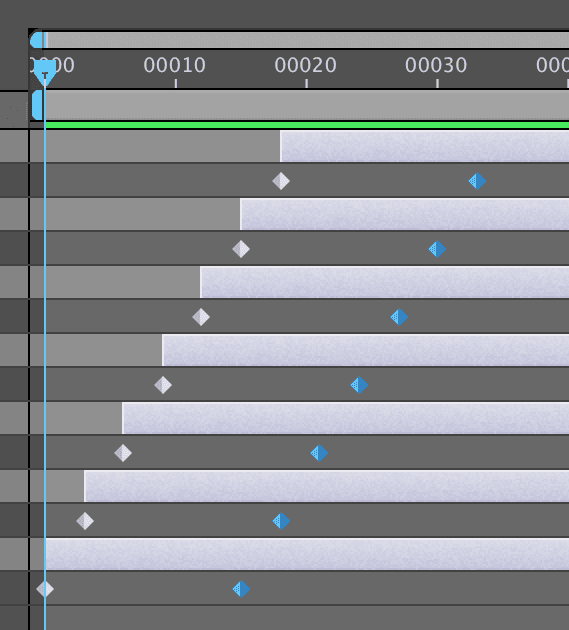
    4. Hold Shift and click on the end keyframe for each layer until you have all 7 end keyframes selected (as shown below). This selection method allows you to modify multiple keyframes simultaneously.

      PRO TIP: For efficiency with larger projects, you can drag a selection marquee around keyframes. Start dragging in empty Timeline space and avoid including start keyframes in your selection. For keyframes that can't be selected in one drag, hold Shift while dragging additional selection boxes to add them to your existing selection.

      end keyframes selected

    5. Ctrl–click (Mac) or Right–click (Windows) on any selected keyframe and choose Keyframe Assistant > Easy Ease.

      IMPORTANT: Your end keyframes now display as hourglass shapes instead of diamonds, indicating successful easing application. Easy Ease is After Effects' most commonly used easing function—it creates smooth deceleration curves that feel natural to the eye.

    6. With all layers still selected, press U again to hide the keyframes and clean up your Timeline view.
    7. Position the playhead at frame 0 to start from the beginning.
    8. Press Spacebar to preview the animation, paying close attention to how the elements now decelerate before stopping. This subtle change dramatically improves the animation's professional quality and visual appeal.
    9. Press Spacebar again to stop playback.

      Take time to scrub through the animation manually using the playhead to observe the easing effect more closely and understand how it affects the motion timing.

      PRO TIP: You can revert an eased keyframe keyframe end easy ease back to linear motion keyframe end by Cmd-clicking (Mac) or Ctrl-clicking (Windows) directly on the keyframe.

    Linear vs Eased Animation

    FeatureLinear MotionEased Motion
    Keyframe ShapeDiamondHourglass
    Speed PatternConstant speedGradual slowdown
    Real-world FeelRobotic movementNatural motion
    Recommended: Always use easing for more realistic animations

    Applying Easy Ease

    1

    Select All Layers

    Press Cmd-A (Mac) or Ctrl-A (Windows) to select all layers in timeline

    2

    Show Keyframes

    Press U key to reveal keyframes for all selected layers

    3

    Select End Keyframes

    Hold Shift and click each end keyframe or drag selection box around them

    4

    Apply Easy Ease

    Right-click selected keyframes and choose Keyframe Assistant > Easy Ease

    Sliding over the Entire Class List

    Now we'll create the horizontal transition that moves our class list into its final position alongside the icons. This timing is crucial—we want to give viewers enough time to read the initial animation before introducing the next visual element. Strategic timing like this guides viewer attention and creates a more digestible information hierarchy.

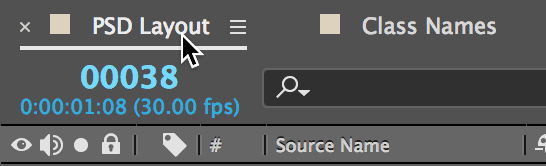
    1. At the top-left of the Timeline, switch back to the PSD Layout composition by clicking its tab name as shown below:

      switch to main composition

    2. To focus on the class names animation, temporarily hide other elements. In the Timeline, click the eye icons eye icon next to Class Icons and In A Day layers to hide them.

    3. We'll establish our final position first, then create the starting point—a professional workflow that ensures precise positioning. Move the playhead to frame 50 using this direct method:

      • Click on the Current Time Display at the Timeline's top-left.
      • Type 50
      • Press Return (Mac) or Enter (Windows).
    4. In the Timeline, expand the Class Names layer by clicking its disclosure triangle.
    5. Expand the Transform properties to access position controls.
    6. Click the stopwatch icon stopwatch next to Position to create a keyframe at frame 50. This establishes our end position.
    7. Move the playhead to frame 43.

      TIMING NOTE: Frame 43 is strategically chosen—the class names complete their downward animation at frame 33, so we're allowing a 10-frame pause for viewer comprehension before initiating the horizontal movement. This pause-and-reveal technique is fundamental to professional motion graphics pacing.

    8. Hover over the first Position value (X-axis position) and drag right to center the text in the frame (approximately 400 pixels). This creates our starting keyframe automatically.
    9. Apply easing for natural deceleration: Ctrl–click (Mac) or Right–click (Windows) on the end keyframe (frame 50) and select Keyframe Assistant > Easy Ease.

      This ensures our class names slow down smoothly as they reach their final position, maintaining consistency with our earlier easing applications.

    10. Press Spacebar to preview the enhanced animation. You should see the classes drop from above, pause briefly, then slide left together as a cohesive unit—a much more sophisticated and readable animation sequence.
    11. Press Spacebar again to stop playback.
    12. Collapse the Class Names layer to maintain a clean Timeline workspace.

    Timeline Navigation Tip

    Click the Current Time Display at the top left of Timeline, type frame number, then press Enter to jump directly to specific frames instead of dragging the playhead.

    Animating the Icons

    The icons will slide in from the left while simultaneously fading from transparent to opaque, creating a polished reveal effect that draws attention to the connection between each class and its associated program or topic. This dual-property animation (position + opacity) adds visual sophistication and helps establish the relationship between text and icons.

    1. Move the playhead to frame 50 to set our end position first.
    2. Reveal the Class Icons layer by clicking in the empty eye column space eye icon.
    3. Expand the Class Icons layer, then expand its Transform properties.
    4. Click the stopwatch stopwatch next to Position to establish the end position keyframe at frame 50.
    5. Move the playhead to frame 43 to match our class names timing.
    6. Hover over the first Position value (X-axis) and drag left until the icons are completely off-screen to the left (approximately 230 pixels). This creates a clean entrance effect.
    7. Apply consistent easing: Ctrl–click (Mac) or Right–click (Windows) on the end keyframe (frame 50) and choose Keyframe Assistant > Easy Ease.
    8. Now we'll add the opacity fade-in effect. Click the stopwatch stopwatch next to Opacity to create a keyframe at frame 43.
    9. Set Opacity to 0% for complete transparency at the start.
    10. Move the playhead to frame 50.
    11. Change Opacity to 100% for full visibility at the end position.
    12. Preview the animation—the icons should now elegantly slide in from the left while fading into view, perfectly synchronized with the class names' arrival. This creates a sophisticated reveal that feels intentional and polished.
    13. Collapse the Class Icons layer to maintain workspace organization.

    Animation Property Changes

    Position X-axis
    230
    Opacity Start
    0
    Opacity End
    100

    Animating the "In a Day" Title

    The final element—our prominent "In a Day" title panel—will slide in from the right to complete the composition. This creates a satisfying conclusion to our animation sequence, with all elements converging simultaneously to form the complete message. The right-to-left movement provides visual balance against the icons' left-to-right entrance.

    1. Position the playhead at frame 50 for our end position.
    2. Reveal the In A Day layer by clicking in its eye column space eye icon.
    3. Expand the In A Day layer, then expand Transform.
    4. Click the stopwatch stopwatch next to Position to set the end position keyframe at frame 50.
    5. Move the playhead to frame 43 to maintain timing synchronization with other elements.
    6. Hover over the first Position value (X-axis) and drag right until the blue panel is completely off-screen to the right (approximately 620 pixels).
    7. Apply matching easing: Ctrl–click (Mac) or Right–click (Windows) on the end keyframe (frame 50) and select Keyframe Assistant > Easy Ease.
    8. Preview the complete animation—all elements should now work in harmony, creating a sophisticated, choreographed sequence that builds the complete message through strategic timing and movement.
    9. Collapse the In A Day layer to finalize your workspace organization.

    Adding Motion Blur to Simulate Rapid Movement

    Our animation has solid timing and easing, but it's missing a crucial element that separates professional work from amateur efforts: motion blur. In reality, when objects move quickly, our eyes perceive them with natural blur due to persistence of vision and the finite speed of visual processing. After Effects' Motion Blur feature replicates this phenomenon, adding photorealistic quality that makes digital animations feel more natural and cinematic. This final touch transforms good animation into professional-grade motion graphics.

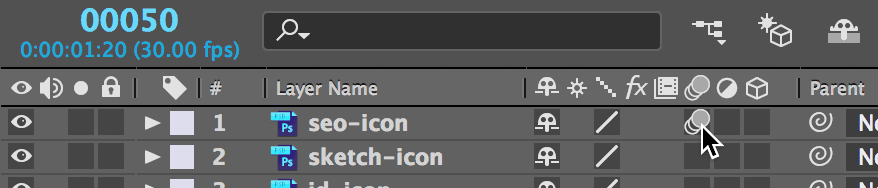
    1. Begin by enabling motion blur globally for the composition. Near the top of the Timeline, click the Motion Blur button motion blur column to activate motion blur rendering.

      motion blur enable for project

    2. Motion blur requires two levels of activation: composition-wide (which we just did) and individual layer activation. Double–click on the Class Icons layer to enter that pre-composition.
    3. Each layer within this composition needs its motion blur switch enabled. Click the motion blur switch for the first layer (SEO-icon) as shown below. If the motion blur column isn't visible, follow the note below to reveal it.

      motion blur enable for layer

      VISIBILITY NOTE: If you don't see the motion blur buttons, click the Expand or Collapse the Layer Switches pane button expand collapse layer switches at the Timeline's bottom-left.

    4. For efficiency, instead of clicking each layer individually, drag down through the empty motion blur boxes for the remaining layers. This single gesture activates motion blur across multiple layers simultaneously—a valuable time-saving technique for complex projects.
    5. Return to the main composition by clicking the PSD Layout tab at the Timeline's top.
    6. Double–click on the Class Names layer to enter that pre-composition.
    7. Enable motion blur for all layers by dragging across their empty motion blur boxes in one smooth gesture.

      If motion blur controls aren't visible, click the Expand or Collapse the Layer Switches pane button expand collapse layer switches at the Timeline's bottom-left.

    8. Switch back to the PSD Layout composition.
    9. Complete the motion blur setup with the final pre-composition. Double–click on the In A Day layer and:

      • Enable motion blur by dragging across the empty motion blur boxes for all layers.
      • Return to the PSD Layout composition.
    10. Preview the enhanced animation using Spacebar. Notice how the motion blur adds subtle realism during fast movements, making the animation feel more organic and professional. The blur is most noticeable during the rapid transitions and should enhance rather than distract from the overall effect.

    Motion Blur Setup Process

    0/4

    Trimming Off Extra Time

    Professional animations require precise timing optimization. Our current composition runs 500 frames—far longer than necessary for effective communication. Since this will loop as a GIF, we need sufficient pause time for viewers to read the final message without creating an awkwardly long cycle. Approximately 4 seconds of reading time after the animation completes provides ideal pacing, placing our optimal endpoint at frame 170.

    1. In the PSD Layout composition, navigate to Composition > Composition Settings.
    2. In the Duration field, type 170 (After Effects will automatically format this as 00170).
    3. Click OK to apply the new duration.
    4. Save your completed work with File > Save—this animation represents a significant milestone in your After Effects skills development.
    5. Keep this project open for the next exercise, where you'll learn to export this animation for web use.

    Timeline Optimization

    500 frames
    Original frame length
    170 frames
    Optimized frame length
    4 seconds
    Reading time after animation

    Adjusting the Amount of Motion Blur

    Motion blur intensity can be fine-tuned to match your project's aesthetic requirements and performance needs:

    1. Navigate to a timeline position where motion blur is clearly visible so you can preview your adjustments in real-time.
    2. In the Project panel, select your composition.
    3. Go to Composition > Composition Settings.
    4. Click the Advanced tab to access motion blur controls.
    5. Adjust the Shutter Angle value—higher numbers produce more pronounced blur effects, while lower values create subtler blur. You'll see changes reflected immediately in your composition view, allowing for real-time fine-tuning of the effect.
    Motion Blur Control

    Adjust the Shutter Angle in Composition Settings > Advanced tab. Higher numbers create more blur, and changes are visible in real-time as you edit the value.

    Key Takeaways

    1Easing creates natural-looking animation by gradually slowing down motion instead of abrupt stops, transforming diamond keyframes into hourglass shapes
    2Motion blur must be enabled both at the composition level and for individual layers to simulate realistic fast-moving object perception
    3Timeline navigation can be streamlined by clicking the Current Time Display and typing frame numbers instead of dragging the playhead
    4Animation timing requires careful consideration - waiting 10 frames between animation sequences provides viewers time to process visual information
    5Layer organization through hide/show controls helps focus on specific elements during complex multi-layer animation work
    6Nested compositions require motion blur to be enabled separately within each sub-composition for the effect to work properly
    7GIF animations benefit from trimmed timelines that provide sufficient reading time while maintaining optimal file size and loop timing
    8Shutter Angle settings in Composition Settings allow real-time adjustment of motion blur intensity for fine-tuning visual effects

    RELATED ARTICLES