April 1, 2026Kalika Kharkar Sharma/8 min read

Exporting an Animated GIF

Master After Effects to Photoshop GIF Export Workflow

Key Skills You'll Master

After Effects Export

Learn to export image sequences from After Effects using PNG format for maximum quality preservation.

Photoshop Animation

Master importing image sequences into Photoshop and creating professional animated GIFs with optimized settings.

Frame Optimization

Discover advanced techniques to reduce file size by combining duplicate frames and optimizing animation length.

Topics Covered in This After Effects Tutorial:

Exporting an Image Sequence from After Effects, Exporting As Animated GIF in Photoshop, Reducing the Number of Frames

Exercise Preview

preview animated gif Photoshop

Exercise Overview

In this exercise, you'll master a fundamental workflow that bridges After Effects and Photoshop to create optimized animated GIFs. While After Effects excels at motion graphics creation, Photoshop provides superior GIF compression and optimization capabilities. This two-application approach remains the industry standard for delivering high-quality animated GIFs that balance visual fidelity with manageable file sizes—crucial for web performance and user experience.

Complete Workflow Overview

1

Export from After Effects

Convert your After Effects composition to a PNG sequence for import into Photoshop

2

Import to Photoshop

Load the image sequence into Photoshop as an animation timeline

3

Optimize and Export

Reduce frame count and export as an optimized animated GIF

Getting Started

  1. You should have yourname-classes-in-a-day.aep open in After Effects. If you closed it, re-open it by navigating to File > Open Project then Desktop > Class Files > After Effects Class > Classes in a Day GIF. We strongly recommend completing the previous exercises (1B–1C) before proceeding, as they establish the foundation composition we'll be exporting. If you haven't completed those exercises, follow the sidebar instructions below.

    File Organization Best Practice

    Always maintain organized project files in designated folders. This tutorial uses Desktop > Class Files > After Effects Class > Classes in a Day GIF structure for easy asset management.

If You Did Not Do the Previous Exercises (1B–1C)

  1. If a project is currently open in After Effects, save your work with File > Save, then close it using File > Close Project.
  2. Navigate to File > Open Project and locate Desktop > Class Files > After Effects Class > Classes in a Day GIF > Finished AE Projects.
  3. Double–click on classes-in-a-day-Ready for Exporting.aep.
  4. Save this file with your name by going to File > Save As > Save As. Name it yourname-classes-in-a-day.aep and save it back into the Classes in a Day GIF folder.

Project Setup Checklist

0/4

Exporting from After Effects

While After Effects cannot directly export animated GIFs, it excels at rendering high-quality image sequences that Photoshop can then optimize into GIFs. This workflow gives you maximum control over both the visual quality and file size of your final output. We'll export each frame as a separate PNG file, preserving transparency and ensuring no quality loss during the handoff between applications.

  1. Navigate to Composition and select Add to Render Queue. This opens After Effects' powerful rendering system.
  2. In the Render Queue panel, locate the Output Module section and click the word Lossless.
  3. In the Output Module Settings dialog, change the Format dropdown to PNG Sequence. PNG format ensures maximum quality preservation and supports transparency.
  4. Click OK to confirm your format settings.
  5. Next to Output To, click either Not yet specified or the existing file name to choose your export destination.
  6. Navigate to Desktop > Class Files > After Effects Class > Classes in a Day GIF.
  7. Ensure Save in subfolder is checked at the bottom of the window. This keeps your image sequence organized in its own directory.
  8. Click Save to set your export location.
  9. In the top right of the Render Queue panel, click Render to begin the export process.

    A progress bar will display at the top of the panel, tracking the rendering progress. For short animations like this, the process should complete quickly, but longer or more complex compositions may take several minutes depending on your system specifications.

Why PNG Sequence Over Direct Export

After Effects cannot export animated GIFs directly, but PNG sequences maintain maximum image quality and provide flexibility for optimization in Photoshop.

Render Queue Export Process

1

Add to Render Queue

Access Composition menu and add your comp to the render queue for batch processing

2

Configure Output Module

Change from Lossless to PNG Sequence format for individual frame export

3

Set Output Location

Specify destination folder and enable subfolder creation for organization

4

Execute Render

Click Render and monitor progress bar for completion status

Exporting As Animated GIF in Photoshop

Now that we have our image sequence, we'll leverage Photoshop's advanced GIF optimization tools to create a web-ready animated GIF. Photoshop's GIF export capabilities offer superior compression algorithms and frame optimization compared to other applications.

  1. Launch Adobe Photoshop.
  2. Go to File > Open.
  3. Navigate to Desktop > Class Files > After Effects Class > Classes in a Day GIF > PSD Layout.
  4. You should see 170 PNG images numbered sequentially from 0,000 through 00169. This represents every frame of your animation.
  5. Click once on PSD Layout_0,000.png (the first frame in the sequence).
  6. Check the Image Sequence option. Mac users may need to click the Options button to reveal this setting. Wait a few seconds if the checkbox doesn't appear immediately.
  7. Click Open to import the entire sequence.
  8. In the frame rate dialog, set Frame Rate to 30 fps to match your original After Effects composition.
  9. Click OK to confirm.
  10. If the Timeline panel isn't visible at the bottom of your workspace, enable it by going to Window > Timeline.
  11. Choose View > Fit on Screen to optimize your workspace for animation review.
  12. Configure optimal playback settings by clicking the Gear icon (Set playback options) at the top left of the Timeline panel:

    • Set Resolution to 100% for accurate preview quality.
    • Click the Gear icon again to close the options menu.
  13. Press the Spacebar to preview your animation and verify the import was successful.

Image Sequence Details

170 frames
PNG images exported
30 fps
frames per second
100%
playback resolution
Image Sequence Import Requirements

Always select the first frame (0,000) and enable Image Sequence checkbox. Mac users may need to click Options to access this setting.

Reducing the Number of Frames

Photoshop imposes a 500-frame limit on animated GIF exports. While our current animation falls well within this constraint, understanding frame reduction techniques is essential for longer animations. This optimization method also significantly reduces file sizes by eliminating redundant frames—particularly important when static elements remain on screen for extended periods.

The technique involves identifying sequences where nothing changes on-screen and consolidating those static frames into a single extended frame. We'll import one representative static frame as a Smart Object, extend its duration to cover the entire static period, then remove the redundant original frames. For animations exceeding 500 frames, you'll need to edit the composition length in After Effects before applying this optimization technique.

  1. Access the Timeline panel options by clicking the panel menu panel menu at the top right and selecting Panel Options.
  2. Change Timeline Units to Frame Number for precise frame navigation.
  3. Click OK.

    The timeline display now shows frame numbers (starting at 0) instead of timecode format, making it easier to identify specific frames.

  4. Position the playhead at the animation start (frame 0) by dragging it in the Timeline.
  5. Go to File > Export > Save for Web (Legacy) to access GIF export settings.
  6. Set the file format dropdown to GIF at the top right of the window. We're not exporting yet—this preview helps us analyze the current frame count.

  7. Note the frame indicator at the bottom right showing 1 of 170, confirming our animation contains 170 frames in its current state.
  8. Click Done to return to the main interface.
  9. Optimize timeline navigation by adjusting the zoom slider at the bottom of the Timeline panel. Scale it so Layer 1 fills at least the full width of the Timeline panel for precise scrubbing control.
  10. Scrub through the timeline to locate the frame where motion stops (approximately frame 51).

    Pay careful attention to subtle movements. There's minimal motion between frames 50 and 51, making frame 51 the first truly static frame. Frames 51–169 are identical, representing wasted file space in the final GIF.

  11. In the Layers panel, select Video Group 1 (not Layer 1) to ensure proper layer targeting.
  12. Go to File > Place Embedded to import the static frame as an editable Smart Object.
  13. Navigate to Desktop > Class Files > After Effects Class > Classes in a Day GIF > PSD Layout.
  14. Double–click on PSD Layout_00051.png to select this representative static frame.
  15. Press Return (Mac) or Enter (Windows) to accept the current size and placement. If you see a bounding box with an X, press Return again to finalize the placement.
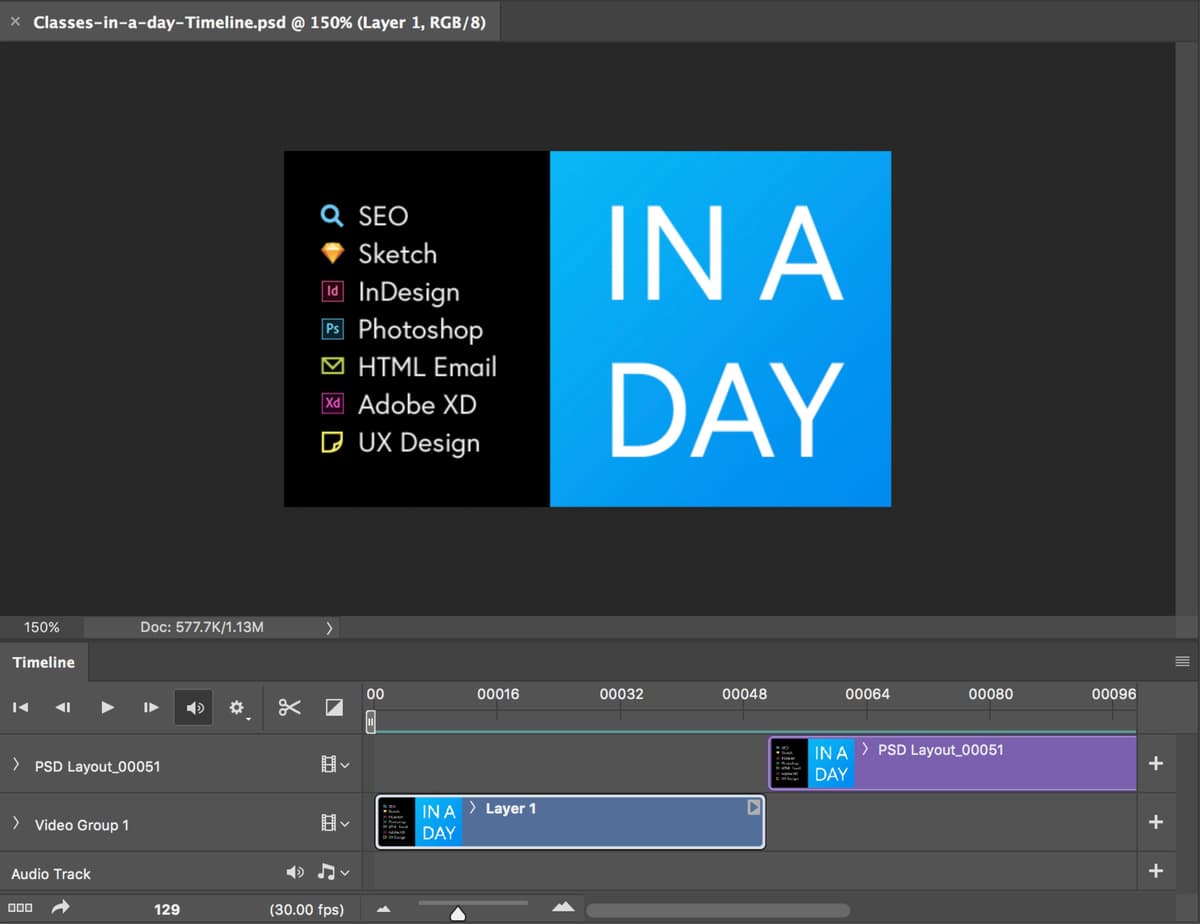
  16. In the Timeline, carefully drag the end point of the PSD Layout_00051 clip until it aligns with the end of the Layer 1 clip. Drag only the end handle, not the entire clip, to extend its duration.

    ps timeline adjust end of imported frame

  17. Select the Layer 1 clip in the Timeline to prepare for splitting.
  18. Ensure the playhead remains positioned at frame 51, marking the split point.
  19. Click the Split at Playhead button split at playhead near the top left of the Timeline to divide the layer.
  20. Select Layer 1 copy in the Timeline—this represents the redundant static frames.
  21. Press Delete to remove these unnecessary frames and optimize the animation.
  22. Return to File > Export > Save for Web (Legacy) to review the optimization results.
  23. Verify the file format remains set to GIF.
  24. The frame indicator should now display 52 of 52 (down from the original 170), confirming successful frame consolidation and significant file size reduction.
  25. Set Looping Options to Forever for continuous animation playback.
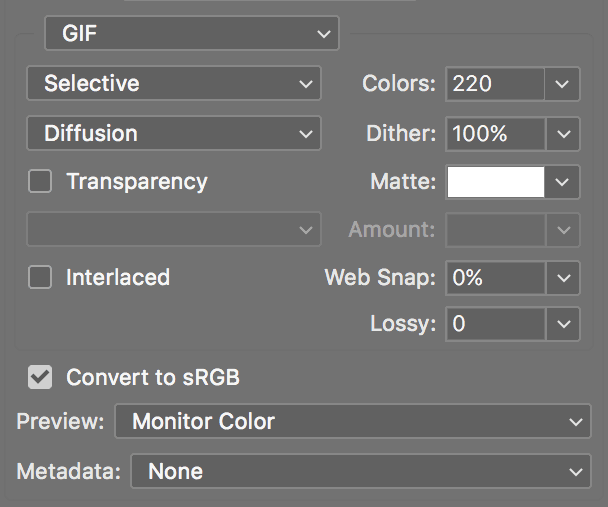
  26. Configure the following export settings for optimal balance between quality and file size. These settings work well for most web-based animated GIFs:

    gif options

  27. Click Save to export your optimized GIF.
  28. Name the file yourname-classes-in-a-day.gif and save it to Desktop > Class Files > After Effects Class > Classes in a Day GIF.
  29. Preserve your work by going to File > Save As.
  30. Save the Photoshop file as Classes in a Day Timeline.psd in the Desktop > Class Files > After Effects Class > Classes in a Day GIF folder.

    Saving the PSD file allows you to easily modify export settings or make timing adjustments in future iterations without starting from scratch.

  31. Switch to your Desktop to test the final result.
  32. Navigate to Desktop > Class Files > After Effects Class > Classes in a Day GIF > Final GIF.
  33. CTRL–click (Mac) or Right–click (Windows) on yourname-classes-in-a-day.gif, select Open With and choose any modern web browser (Chrome, Firefox, Safari, Edge).

    Congratulations! You've successfully created a professionally optimized animated GIF using the industry-standard After Effects to Photoshop workflow. This technique scales to projects of any complexity and ensures your animations perform well across all digital platforms.

Frame Optimization Results

500 limit
maximum GIF frames
170 frames
original frame count
52 frames
optimized frame count
Smart Object Optimization Technique

Combine duplicate static frames into a single Smart Object layer. This dramatically reduces file size by eliminating redundant frame data while maintaining animation timing.

Frame Reduction Process

1

Identify Static Frames

Locate where animation stops moving, typically around frame 51 in this exercise

2

Place Smart Object

Import the first static frame as an embedded Smart Object for efficient layering

3

Extend Duration

Drag the Smart Object clip to match the original animation length

4

Remove Duplicates

Split the original layer and delete redundant static frames

Key Takeaways

1After Effects cannot export animated GIFs directly, requiring a PNG sequence export workflow through Photoshop
2PNG sequences maintain maximum image quality during the export process compared to compressed video formats
3Photoshop has a 500-frame limit for animated GIF exports, requiring optimization for longer animations
4Smart Object technique allows combining duplicate static frames to dramatically reduce file size
5Proper file organization with subfolders prevents asset confusion during complex export workflows
6Frame rate settings of 30 fps provide smooth animation while balancing file size considerations
7Timeline zoom controls enable precise frame-by-frame editing for identifying static animation segments
8Save for Web Legacy provides essential GIF optimization controls including looping and compression settings

RELATED ARTICLES