April 1, 2026Dan Rodney/6 min read

Shared XD Libraries: Free Adobe XD Tutorial

Master collaborative design workflows with shared libraries

Core XD Library Concepts

Cloud-Based Sharing

Libraries must be saved as cloud documents to enable sharing across teams and devices. This ensures universal accessibility and real-time synchronization.

Asset Types

Shared libraries contain colors, character styles, and components that can be reused across multiple XD documents and team members.

Live Updates

When the original library is updated, all connected files across everyone's computers automatically receive updates through linked assets.

Topics Covered in This Adobe XD Tutorial:

Publishing a Library, Using an XD Library

Exercise Preview

preview shared libraries

Exercise Overview

In this exercise, you'll master one of Adobe XD's most powerful collaboration features: shared libraries. This capability allows you to maintain design consistency across multiple documents while enabling seamless collaboration with team members. You'll learn to create, publish, and leverage reusable assets—including colors, character styles, and components—that automatically sync across projects and team members' workstations. This workflow is essential for maintaining brand consistency and accelerating design iterations in professional environments.

Exercise Files Required

This tutorial uses specific practice files located in Desktop > Class Files > Adobe XD Class > Libraries. Make sure you have access to Pulse Design System.xd and Women.xd files before proceeding.

Publishing a Library

Shared cloud libraries represent a cornerstone of modern design system management. When you publish a library, you create a single source of truth that ensures design consistency across your entire team. The real power lies in the automatic propagation of updates—when you modify the original library, every file using those assets receives the updates instantly, eliminating the tedious process of manually updating designs across multiple documents.

  1. In Adobe XD, go to File > Open from Your Computer or hit Cmd–Shift–O (Mac) or CTRL–Shift–O (Windows).
  2. Navigate into Desktop > Class Files > Adobe XD Class > Libraries and double–click on Pulse Design System.xd to open it.
  3. For you to share a library it must be a cloud document. This requirement ensures seamless synchronization across devices and team members. Do File > Save As and:

    • The Save As name should already be Pulse Design System
    • Click Save.
  4. If the Libraries panel is not open, at the bottom left of the window click the libraries panel icon icon.
  5. At the top right of the Libraries panel, click the Publish as a library button publish as library.
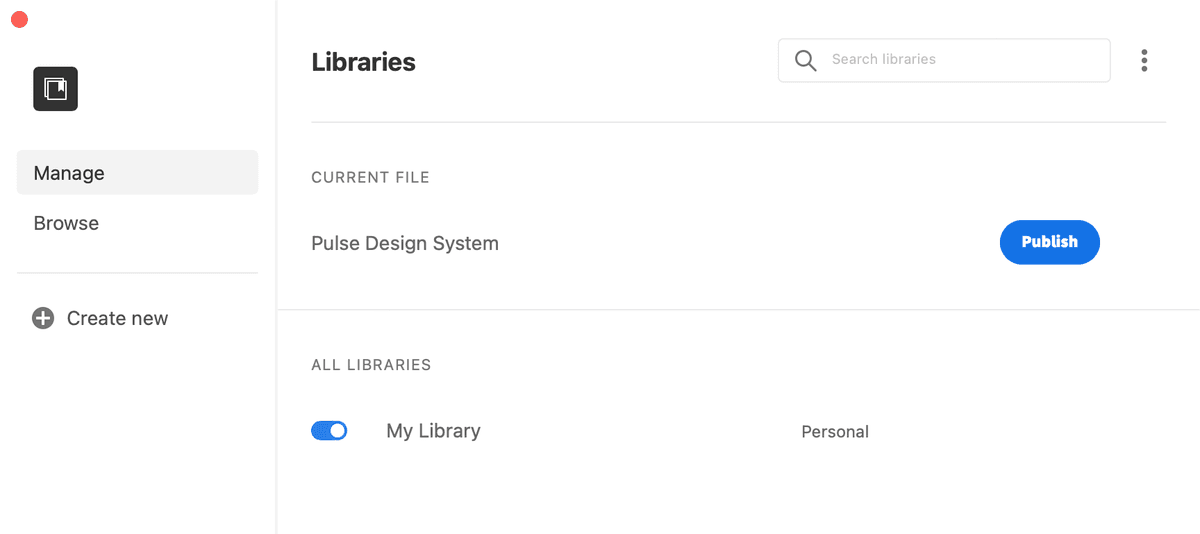
  6. Under Current File, to the far right of Pulse Design System click Publish.
  7. A window where you can invite people will appear. This collaboration hub is where you establish your team's access permissions. If you're working with a team, this is where you'd invite others to use this library. You can define granular permissions—whether team members can merely view assets or have full editing capabilities to modify the design system.

    We won't need to invite anyone now, so close the window so you're back in your main XD file.

Library Publishing Process

1

Open Source File

Open the Pulse Design System.xd file from the Libraries folder using File > Open from Your Computer or keyboard shortcuts.

2

Save to Cloud

Use File > Save As to ensure the document is saved as a cloud document, which is required for sharing capabilities.

3

Access Libraries Panel

Click the Libraries panel icon at the bottom left of the window to open the sharing interface.

4

Publish Library

Click the Publish as a library button, then click Publish next to your file name to make it available for sharing.

Team Collaboration Setup

The invitation window allows you to define team member permissions - they can either view the library or have full editing rights. This flexibility supports different workflow requirements.

Using a Published Library

Now that we have established our shared library, let's explore how to leverage it across different projects. This workflow demonstrates the practical benefits of design systems in real-world scenarios.

  1. Go to File > Open from Your Computer or hit Cmd–Shift–O (Mac) or CTRL–Shift–O (Windows).
  2. Navigate into Desktop > Class Files > Adobe XD Class > Libraries and double–click on Women.xd to open it.
  3. If the Libraries panel is not open, at the bottom left of the window click the libraries panel icon icon.
  4. At the top left of the Libraries panel, click the arrow arrow go back to artboard list to go back to libraries.
  5. In the list of libraries, click on Pulse Design System.
  6. You can now access all assets from the shared library. Drag the navbar component to the top of the artboard to see how components maintain their properties and behaviors across documents.
  7. Select the New Autumn Attire text.
  8. In the Libraries panel click on the Heading character style to apply it. Notice how the text instantly adopts all the typographic properties defined in your design system.
  9. Select the text cozy women's styles for the fall season
  10. In the Libraries panel click on the subeading character style to apply it.
  11. At the top left of the Libraries panel, click the arrow arrow go back to artboard list to go back to libraries.
  12. In the list of libraries, click on Document Assets.

    Here you can see the assets within this file. Notice they are all linked (to the shared library). This linked relationship is crucial—it ensures that any updates to the source library will be reflected in this document.

  13. Go into the Window menu and choose Pulse Design System to switch back to that file.
  14. Double–click on the navbar's background color.
  15. In the Libraries panel, click on the dark brown color #704738 to change the navbar's background color.
  16. At the bottom of the window in the blue bar that appears click Update now. This action publishes your changes to all linked documents. If you missed the blue bar and it went away:

    • At the top right of the Libraries panel, click the Publish as a library button publish as library.
    • Under Current File, to the far right of Pulse Design System click Update.
    • Close the Libraries window so you're back in the Adobe XD file.
  17. Do a File > Save.
  18. Go into the Window menu and choose Women to switch back to that file.
  19. In the Libraries panel you should see the link icon to the right of navbar is now a blue circle (it may take a moment for it to register). This blue indicator signals that an update is available from the source library. If you still don't see the change after a while, try closing the Women.xd file (save the changes) and re-opening it.
  20. In the Libraries panel hover over the navbar's blue circle link icon to see the new navbar previewed on the artboard. This preview feature allows you to evaluate changes before committing to them.
  21. Click the blue circle link icon to update the component.

    NOTE: If you do not want to accept the change, you'd CTRL–click (Mac) or Right–click (Windows) on the component and choose Make local. However, exercise caution with this option—breaking the link means this asset will no longer receive updates when the shared library is modified, potentially leading to design inconsistencies across your project.

  22. We're done with this exercise, but read on to learn about managing published libraries—a crucial skill for design system governance.

Applying Library Assets

1

Open Target Document

Open the Women.xd file where you want to apply the shared library assets and ensure the Libraries panel is visible.

2

Navigate to Shared Library

Click the arrow in the Libraries panel to access the library list, then select Pulse Design System to view available assets.

3

Apply Components and Styles

Drag components like the navbar to your artboard and apply character styles by selecting text and clicking the desired style in the Libraries panel.

Asset Linking Confirmed

When you switch back to Document Assets view, you'll notice all applied elements show as linked to the shared library, ensuring they receive future updates automatically.

Managing Libraries from Within Adobe XD

Effective library management is essential for maintaining design system integrity and team collaboration. Adobe XD provides robust controls for governing access and permissions directly within the interface.

  1. When viewing a shared library in the Libraries panel of XD (NOT Document Assets), at the top right of the Libraries panel click the Invite to Library button invite to library.
  2. In the window that opens:

    • If you don't automatically see the Invite options, hover over the library's name and to the right click the ••• button and choose Invite people.
    • You can add new people and assign appropriate permission levels based on their role in your design process.
    • To revoke access click a member's Can view or Can edit menu to the right of their name and choose Remove. This is particularly important when team members change roles or leave the organization.

Library Update Methods

FeatureManual UpdateAutomatic Sync
Trigger MethodBlue bar notificationReal-time sync
User ControlClick Update nowAutomatic application
VisibilityBlue circle indicatorsSeamless updates
AcceptanceOptional via hover previewApplied immediately
Recommended: Manual updates provide better control and review capabilities for design consistency.
Breaking Library Links

Using Make local on a component permanently breaks its connection to the shared library. This asset will no longer receive updates, making it unique to the current file only.

Managing Libraries from Adobe Creative Cloud App

For comprehensive library management, the Adobe Creative Cloud app provides additional administrative capabilities. This centralized approach is particularly valuable for design managers overseeing multiple libraries and team members.

  1. Launch Adobe Creative Cloud app.
  2. At the top left, click on the Files tab.
  3. On the left, click on libraries panel icon Your libraries.
  4. Here you can perform comprehensive library management tasks:

    • CTRL–click (Mac) or Right–click (Windows) on a library and choose what you want to do (Invite people, Delete, etc.). This context menu provides quick access to all administrative functions.
    • Click on a library to see its contents and monitor asset usage across your organization. This visibility is crucial for understanding which design system components are most valuable to your team.

Creative Cloud Library Management

0/4

Creative Cloud App vs XD Management

Pros
Centralized view of all libraries across Creative Suite applications
Bulk management operations for multiple libraries simultaneously
Enhanced invitation and permission management interface
Cross-application library usage and sharing capabilities
Cons
Requires switching between applications for library management
Less integrated with active design workflow compared to in-app management
May have slight delays in reflecting real-time changes made in XD

Key Takeaways

1Shared XD libraries must be saved as cloud documents to enable cross-team collaboration and synchronization across multiple devices and users.
2Libraries contain reusable design assets including colors, character styles, and components that maintain consistency across multiple XD documents.
3Published libraries automatically update all connected files when changes are made, ensuring design consistency across team projects and workflows.
4The Libraries panel provides two views: shared libraries for accessing published assets and Document Assets for viewing file-specific linked elements.
5Team collaboration is managed through invitation systems with configurable permissions allowing either view-only or full editing access to shared libraries.
6Library updates can be managed manually through blue notification bars or automatic synchronization, with preview capabilities before accepting changes.
7Making components local breaks the library connection permanently, preventing future updates but allowing file-specific customization when needed.
8Adobe Creative Cloud app provides alternative library management with centralized control, bulk operations, and cross-application sharing capabilities.

RELATED ARTICLES