March 22, 2026 (Updated March 23, 2026)Noble Desktop/1 min read

Jump to the Previous or Next Word

Master efficient text navigation and cursor control techniques

Navigation Fundamentals

Word-level navigation is one of the most essential skills for efficient text editing, dramatically reducing the time spent positioning your cursor character by character.

Common Navigation Scenarios

Code Editing

Jump between variable names, function declarations, and code blocks without precise mouse positioning. Essential for debugging and refactoring workflows.

Document Writing

Navigate through paragraphs, sentences, and specific terms quickly. Particularly useful for editing long-form content and technical documentation.

Data Entry

Move efficiently between form fields, spreadsheet cells, and structured data inputs without breaking concentration or workflow rhythm.

Navigation Method Efficiency

FeatureCharacter-by-CharacterWord-by-Word
SpeedSlowFast
PrecisionHighMedium
FatigueHighLow
Best forFine adjustmentsGeneral navigation
Recommended: Use word-level navigation for general movement, switch to character-level for precise positioning

Word Navigation Benefits and Limitations

Pros
Significantly faster than character-by-character movement
Reduces repetitive key presses and hand strain
Works consistently across most applications and platforms
Combines well with selection shortcuts for efficient text editing
Maintains natural reading flow and text comprehension
Cons
Less precise than character-level navigation
May overshoot target position in dense text
Behavior varies slightly between different applications
Requires muscle memory development for maximum efficiency

Building Navigation Muscle Memory

1

Start with Simple Practice

Open a text document and practice jumping between words using keyboard shortcuts. Focus on accuracy before speed.

2

Integrate with Daily Tasks

Consciously use word navigation during regular writing and editing tasks instead of reaching for the mouse.

3

Combine with Selection

Practice selecting entire words and phrases by combining navigation shortcuts with shift key modifiers.

4

Master Application Variations

Learn how word navigation behaves differently in your most-used applications like code editors, browsers, and document processors.

Navigation Skills Assessment

0/5
Professional Productivity Impact

Mastering word-level navigation can reduce text editing time by up to 60% compared to mouse-dependent workflows, making it an essential skill for developers, writers, and knowledge workers.

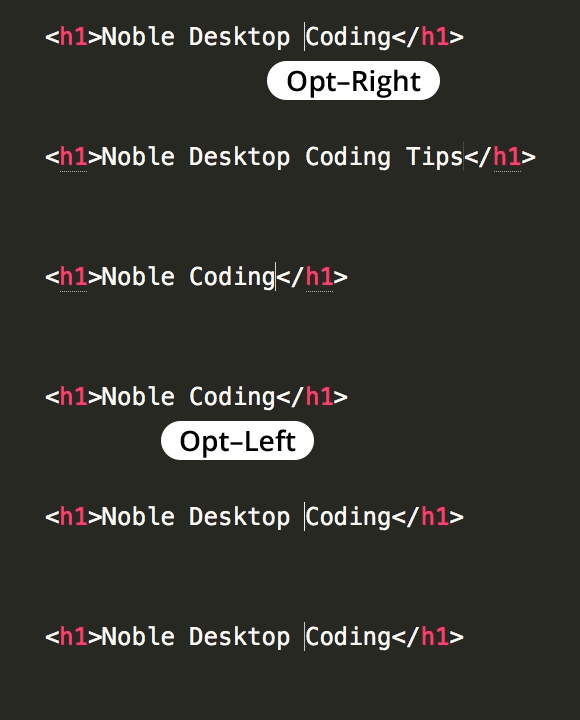
Use Option (Mac) or Ctrl (Windows) with the arrow keys to quickly navigate and edit your code. Hit Option–Left (Mac) or Ctrl–Left (Windows) to move the cursor to the previous word. Hit Option–Right (Mac) or Ctrl–Right (Windows) to jump to the next word. This is an operating system feature so it should work in any text-editor.

Ct Jump Word


Key Takeaways

1Word-level navigation is significantly faster than character-by-character movement for general text editing tasks
2Keyboard shortcuts for word navigation work consistently across most applications and operating systems
3Combining word navigation with selection shortcuts creates powerful text editing workflows
4Building muscle memory for navigation shortcuts requires consistent practice integrated into daily tasks
5Different applications may have slight variations in word navigation behavior that require adaptation
6Word navigation reduces hand strain and repetitive stress compared to mouse-dependent editing
7Professional productivity can improve dramatically with mastery of efficient navigation techniques
8Context-aware navigation switching between word-level and character-level movement maximizes efficiency

RELATED ARTICLES