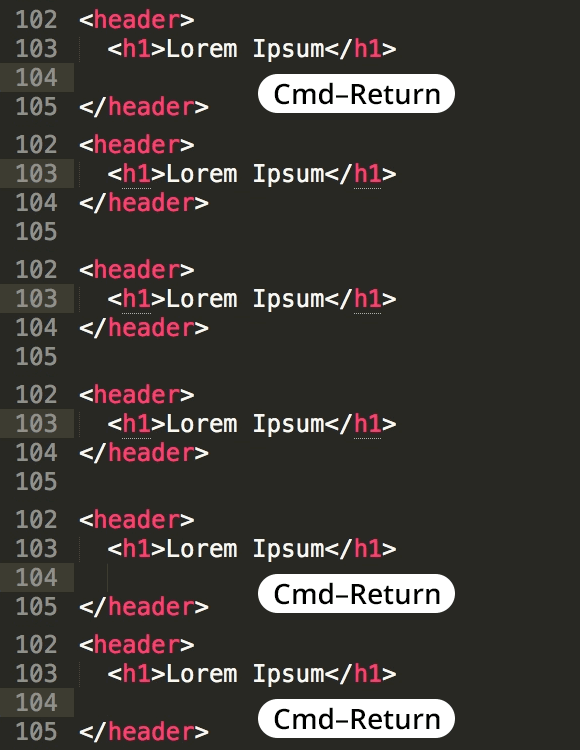
Insert New Line in Sublime Text
Master Text Editing in Sublime Text Editor
Understanding how to insert new lines efficiently is fundamental to productive coding and text editing workflows in Sublime Text.
Common Line Break Scenarios
Code Formatting
Breaking long function calls or parameter lists across multiple lines for better readability. Essential for maintaining clean, professional code.
Content Writing
Creating proper paragraph breaks and line spacing in documentation, README files, or markdown content within your editor.
Data Processing
Splitting concatenated text or reformatting imported data that needs to be organized across multiple lines.
Line Break Methods Comparison
| Feature | Manual Entry | Keyboard Shortcuts | Find & Replace |
|---|---|---|---|
| Speed | Slow | Fast | Very Fast |
| Bulk Operations | No | Limited | Yes |
| Precision | High | Medium | Variable |
| Learning Curve | None | Easy | Moderate |
Basic Line Insertion Process
Position Your Cursor
Click to place your cursor at the exact point where you want to insert the new line break
Execute Line Break
Press Enter key or use appropriate keyboard shortcut to create the line break at cursor position
Verify Placement
Check that the line break appears correctly and adjust cursor position if needed for additional breaks
Keyboard Shortcuts vs Manual Methods
Line Break Best Practices
Maintains professional appearance and improves readability
Follow team or project standards for line length and formatting
Ensure breaks display correctly across different platforms and editors
Prevents data loss if replacement patterns cause unintended changes
Combine multiple cursor positions with Ctrl+Click to insert line breaks at several locations simultaneously, dramatically improving efficiency for complex formatting tasks.
Mastery Progression
Basic Manual Entry
Learn to position cursor and use Enter key for simple line breaks
Keyboard Shortcuts
Master platform-specific shortcuts for efficient single-line insertion
Find & Replace Mastery
Use pattern matching and bulk operations for complex line formatting
Advanced Techniques
Combine multiple methods and use multi-cursor functionality
Key Takeaways
RELATED ARTICLES
Quickly Write Nested Tags in Sublime Text
Use > (greater-than symbol) to quickly write nested tags. For example, if you type article>h1and hit Tab, Emmet expands article>h1 to <article>...
Quickly Delete a Word in Any Text Editor
Hit Option–Delete (Mac) or Ctrl–Backspace (Windows) to delete the word to the left of the cursor. This is an operating system feature so it should work in any...
Proper Character Encoding with Unicode
To ensure special characters display properly on your website, do one of the following: Add <meta charset="UTF-8"> into the <head> of every HTML page....