Delete Line in Sublime Text
Master Essential Text Editing Commands in Sublime
Deleting lines efficiently is a fundamental text editing skill that improves coding productivity and workflow speed in Sublime Text.
Primary Line Deletion Methods
Keyboard Shortcuts
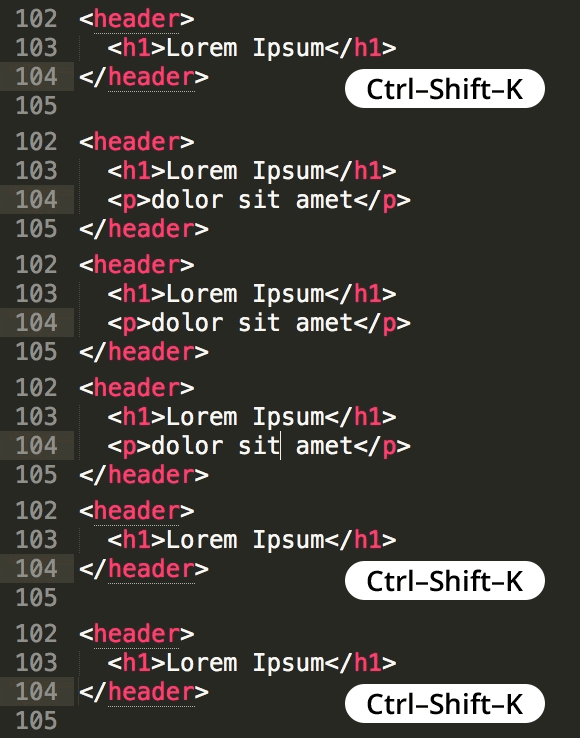
The fastest way to delete lines using built-in key combinations. Works across all operating systems with slight variations.
Menu Commands
Visual menu-driven approach for users who prefer mouse navigation. Accessible through the Edit menu structure.
Command Palette
Text-based command interface for power users. Provides quick access to all line manipulation functions.
Basic Line Deletion Process
Position Cursor
Place your text cursor anywhere on the line you want to delete. The entire line will be targeted regardless of cursor position.
Execute Command
Use your preferred method: keyboard shortcut, menu command, or command palette to trigger the deletion action.
Verify Result
The line is removed completely, and subsequent lines move up to fill the space. Cursor automatically repositions.
Platform-Specific Shortcuts
| Feature | Windows/Linux | macOS |
|---|---|---|
| Delete Current Line | Ctrl+Shift+K | Cmd+Shift+K |
| Cut Line | Ctrl+X | Cmd+X |
| Delete to End | Ctrl+K | Cmd+K |
Advanced Line Operations
Allows batch removal of consecutive or non-consecutive lines
Create backup copies of important code before removing
Know how to quickly reverse accidental deletions
Chain line operations with cut, copy, and paste for complex edits
Quick Line Deletion Benefits vs Considerations
Always save your work frequently and use version control when making extensive line deletions. Consider using bookmarks to mark important sections before major edits.
Key Takeaways
RELATED ARTICLES
Quickly Write Nested Tags in Sublime Text
Use > (greater-than symbol) to quickly write nested tags. For example, if you type article>h1and hit Tab, Emmet expands article>h1 to <article>...
Quickly Delete a Word in Any Text Editor
Hit Option–Delete (Mac) or Ctrl–Backspace (Windows) to delete the word to the left of the cursor. This is an operating system feature so it should work in any...
Proper Character Encoding with Unicode
To ensure special characters display properly on your website, do one of the following: Add <meta charset="UTF-8"> into the <head> of every HTML page....